
If you’ve ever tried to fix a weird website issue, you’ve probably seen that classic advice: “Try clearing your cache and cookies.” They’re usually mentioned in the same breath, so it’s easy to assume they’re basically the same thing. They’re not. At all.
Cache is mostly about speed; cookies are mostly about you. One helps pages load faster, the other lets sites remember and track you in different ways.
In this guide, we’ll walk through what cache and cookies actually store, how they work behind the scenes, how they affect privacy and performance, and when it makes sense to clear one, the other, or both. The goal: help you browse faster and keep your data under control.
What Is Browser Cache (and How Does It Work)?
Think of browser cache as your browser’s short‑cut stash. It’s a storage area on your device where your browser keeps copies of website files—images, videos, HTML, CSS, JavaScript, and other static resources.
How cache works in practice
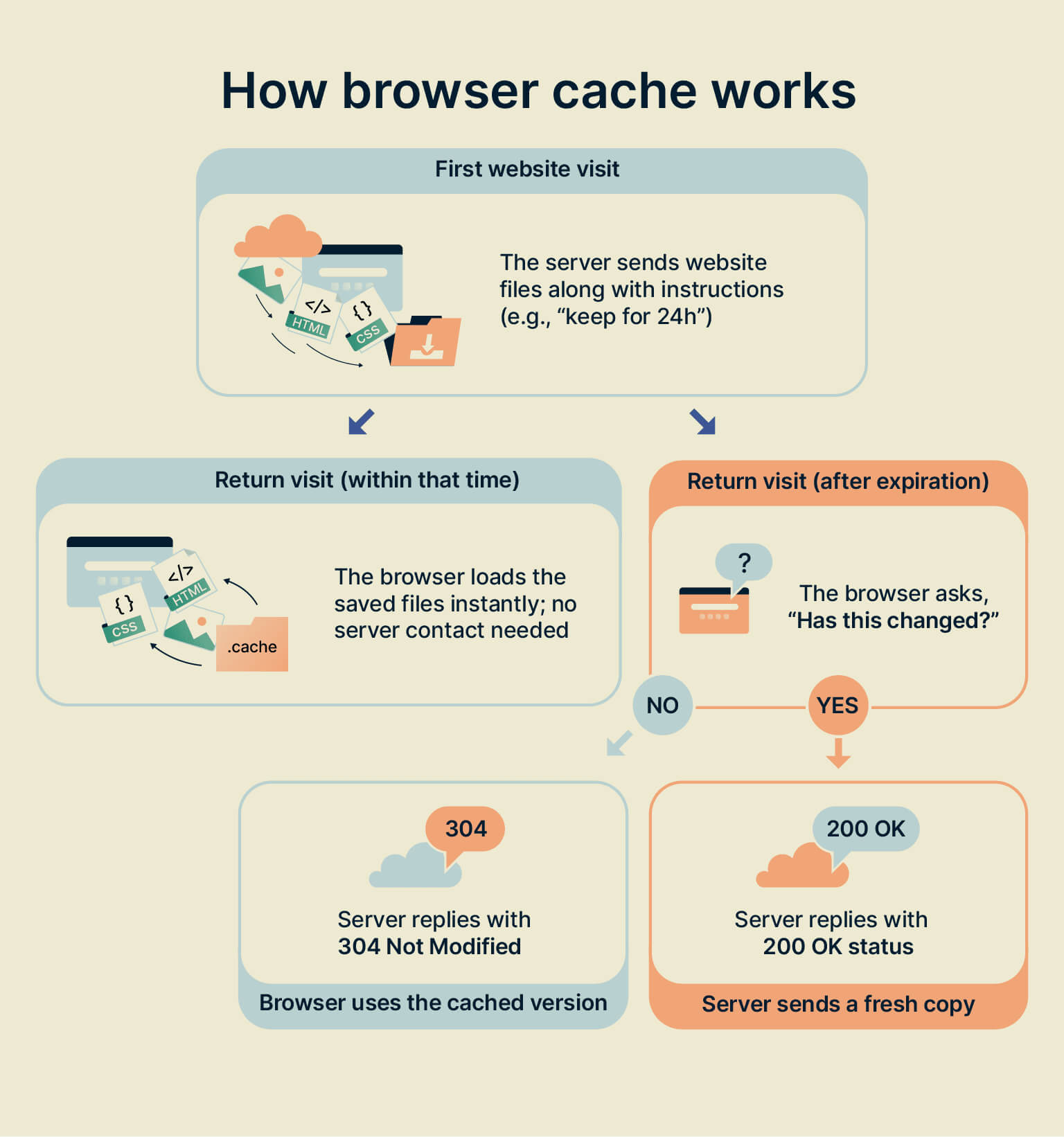
When you visit a site for the first time, the browser has to download everything from the server: layout, scripts, images, logo—the whole package. On later visits, instead of re-downloading all those files, your browser can reuse the copies saved in cache.
Roughly, it goes like this:
- First visit – Browser downloads files from the website’s server and stores them in the local cache.
- Next visits – Browser loads those same files directly from your device instead of asking the server again.
This is especially helpful because many sites reuse the same files (like logos, stylesheets, and scripts) across multiple pages. Caching those files once can speed up the entire site for you.
Who decides how long things stay cached?
Web developers can set expiration times for different file types—for instance, store images for months but scripts for days.
If they need to change files before they expire (say, update a logo or a CSS file), they can use a trick called cache busting, usually by tweaking the file URL (like adding ?v=2). This makes your browser treat it as a “new” file, forcing a fresh download.
You can also force a “fresh reload” yourself with shortcuts like Ctrl+F5, which tells the browser: “Forget your cached version, grab everything from the server this time.”
Why cache is useful
Cache is popular because it makes the web feel snappier and lighter:
- Faster loading: The browser reuses saved files instead of downloading them again, which significantly speeds up page loads, especially on image‑heavy or script‑heavy sites.
- Less data usage: If you’re on a mobile or limited data plan, cache keeps you from downloading the same resources over and over.
- Less strain on servers: Fewer requests to the server means better performance and scalability on the website’s side.
Caching is such a core performance trick that many tools (like WordPress plugins) automatically enable browser caching for you.
Downsides of cache
Of course, there are trade‑offs:
- Outdated content: Sometimes your browser clings to an old version of a page or file even after the site has changed, so you see stale content.
- Corrupted files: If something goes wrong during download, a broken file can get cached and cause weird layout bugs or missing images.
- Storage bloat: Individual files are small, but they add up. On older devices, a big cache can start to matter.
- Manual clean‑up: When things glitch, you often need to clear cache yourself to force the browser to start fresh.
Bottom line: Cache is all about speeding things up and saving bandwidth. It doesn’t “know” who you are, and it doesn’t talk back to websites—its job is just to store website files locally and reuse them.
What Are Cookies (and Why Do Sites Love Them)?
If cache is your browser’s memory for files, cookies are the browser’s memory for you.
Cookies are tiny text files that websites save on your device to remember things about your visits—your login status, language, settings, shopping cart, and also, sometimes, your browsing behavior.
How cookies work
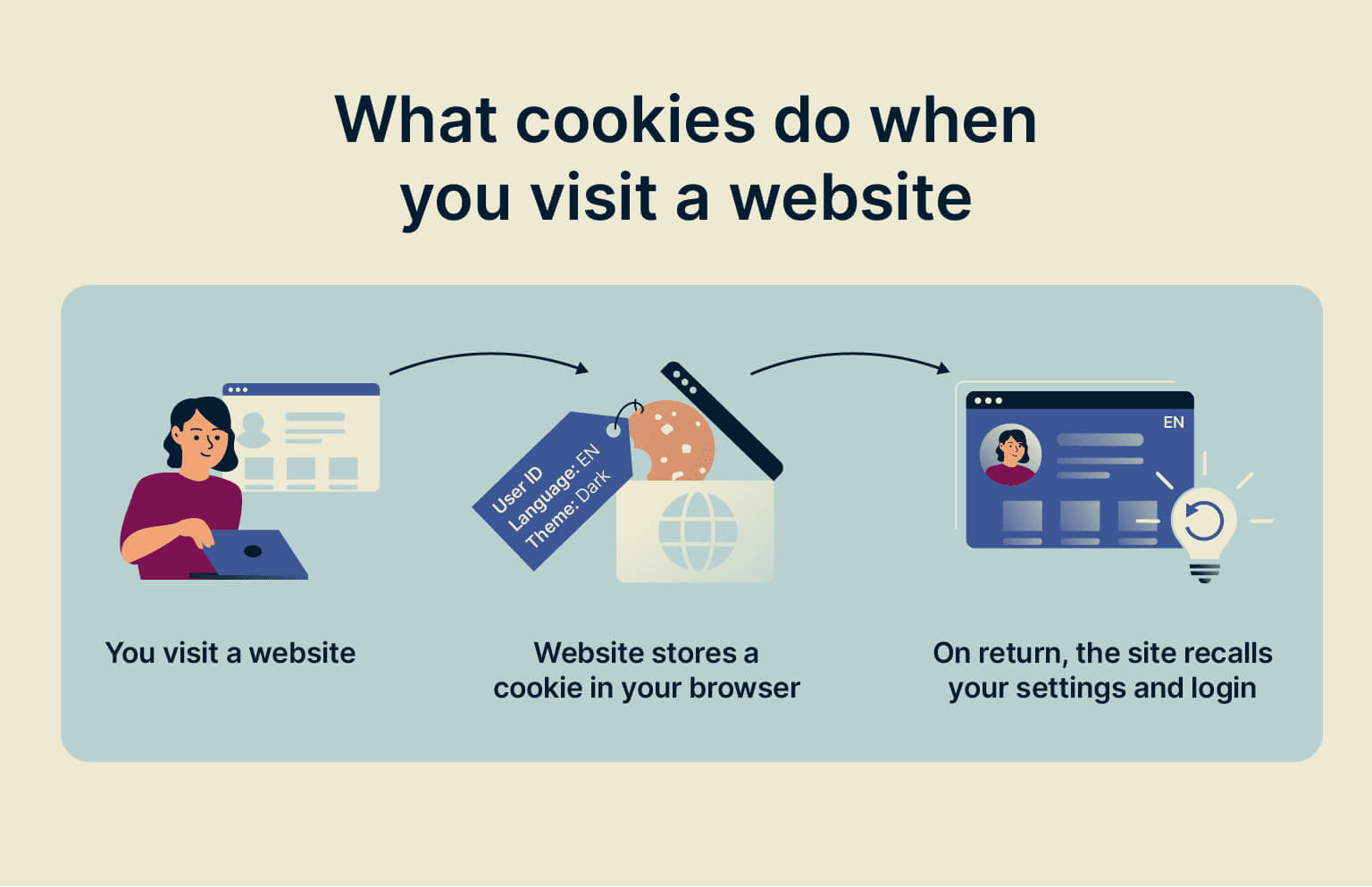
Here’s the basic flow:
- You visit a website.
- The website’s server creates a cookie with a small chunk of info plus a unique ID, then sends it to your browser.
- Your browser stores that cookie locally.
- On your next visit (or even as you load more pages on the same site), your browser sends the cookie back along with each request.
This back‑and‑forth lets the site recognize your browser and tie your actions together: “Oh, that’s the same person who just added something to their cart,” or “This user prefers dark mode and Spanish.”
What cookies typically store
Unlike cache, cookies only deal with text data, not images or code. They might contain:
- Session IDs
- Login/authentication tokens
- Language or region preferences
- Shopping cart contents
- Visit history or tracking identifiers You can’t store a whole image in a cookie, but you can store information that tells a site which image or profile belongs to you.
Types of cookies
Cookies come in a few major flavors:
| Cookie type | How long it lasts / storage behavior | Who sets it / origin | Main purpose & typical use | Privacy / risk notes |
|---|---|---|---|---|
| Session cookies | Only while your browser is open; deleted automatically when you close the browser. | Usually first‑party (the site you’re on). | Keep your session active across pages, remember temporary settings, help basic site features work. | Low risk; they don’t persist after the session ends. |
| Persistent cookies | Stay on your device after you close the browser until their set expiration date (days to years). | First‑party or third‑party. | Keep you logged in, remember preferences (language, theme), support long‑term analytics or ad tracking. | More privacy‑sensitive because they can track behavior over time. |
| First‑party cookies | Session or persistent, depending on how the site configures them. | Set by the website you’re directly visiting. | Handle core site features: authentication, cart contents, remembering settings and preferences. | Generally considered safer if the site itself is trustworthy. |
| Third‑party cookies | Typically persistent, with their own expiration dates. | Set by other domains (ads, trackers, embeds). | Track you across multiple sites for ads, analytics, and profiling. | High privacy impact; many browsers now block or phase them out by default. |
| Zombie cookies | Designed to “come back” even after deletion by recreating themselves from other storage. | Usually third‑party tracking systems. | Enforce bans, build very persistent tracking profiles, sometimes abused for shady activity. | Very invasive; hard to remove and sometimes linked to malware or abuse. |
Are cookies safe?
“Safe” depends on how they’re used:
- Cookies that keep you logged in or remember your cart are basically the plumbing of the modern web—pretty normal and expected.
- Tracking cookies, especially third‑party and zombie cookies, raise privacy issues because they follow you around the web.
- Many regions now require websites to ask for cookie consent (those cookie banners you see everywhere).
As a rule of thumb, be especially cautious about accepting cookies on unencrypted (http://) sites or over public Wi‑Fi, where attackers could potentially intercept data.
Bottom line: Cookies are about identity and behavior. They help sites recognize you, keep you logged in, customize content, and, in some cases, track you—sometimes across multiple sites. —
Cache vs. Cookies: The Big Picture
Now let’s put them side by side so you can see how different they really are.
High‑level difference
- Cache stores website resources (files) to make sites load faster. It treats all users more or less the same.
- Cookies store user‑specific data so sites can remember and customize things for you. They’re also the main engine behind tracking and personalization.
Cache vs. cookies comparison table
Here’s a combined view, based on the ExpressVPN, WP Rocket, and GeeksforGeeks explanations:
| Feature | Cache | Cookies |
|---|---|---|
| What it stores | Website files: HTML, images, videos, CSS, JavaScript, etc. | Text data about you: session IDs, login tokens, preferences, tracking IDs, cart contents. |
| Main purpose | Speed up page loads and reduce server load. | Remember you and your activity; enable personalization and tracking. |
| Where it’s stored | Only on your device (browser storage). | On your device and sent back to servers with requests. |
| Communication with server | One‑way: stored locally, not automatically sent with each request. | Two‑way: browser sends cookies along with every relevant request. |
| Size impact | Can grow large over time, taking more disk space. | Usually tiny (a few KB each); far smaller overall footprint. |
| Expiration | Managed by the browser and server cache rules; often “manual” from the user’s perspective. | Each cookie has its own expiry time (session vs. persistent). |
| When sent to websites | Not automatically sent back with requests. | Automatically sent with matching requests until they expire or are deleted. |
| Impact if deleted | Pages may load slower at first; then speed returns as files re‑cache. | You’ll be logged out, carts may reset, and preferences disappear until new cookies are set. |
| Privacy implications | Not usually used for tracking; mostly neutral. | Can absolutely be used to track you across sites (especially third‑party cookies). |
| Typical examples | Faster loading logo, reused scripts, cached images and stylesheets. | “Remember me” login, saved language, cart contents, ad tracking IDs. |
If you’re wondering “which one tracks me?”—it’s almost always cookies, not cache.
Cache, Cookies, and Browser History: Not the Same Thing
Cache and cookies often show up in the same dialog box as browser history, so it’s easy to mix them up. But they’re three separate concepts with different jobs.
- Cache: Stores pieces of websites (files) to load them faster next time.
- Cookies: Save information about how you interact with a site—logins, preferences, and behavior.
- History: Just a log of which pages you visited and when; it doesn’t store actual files or preferences.
When you clear “browsing data,” you can usually choose which of these three buckets you want to empty.
Should You Clear Cache or Cookies (or Both)?
There’s no one‑size‑fits‑all answer—it depends on what you’re trying to fix or wipe. They solve different problems.
When clearing cache makes sense
Clear the cache if:
- A website looks broken, half‑loaded, or “stuck” on an old design.
- You know the site has been updated but you keep seeing the old version.
- Parts of a page (buttons, images, scripts) aren’t working right and basic refresh doesn’t help.
What happens next:
- Pages load slower for a bit while the browser re‑downloads all the files.
- Once new files are cached, speed goes back to normal (or better, if the site improved).
When clearing cookies makes sense
Clear cookies if:
- You want to log out everywhere on a shared or public device.
- A site keeps mis‑remembering you—wrong login state, messed‑up preferences, or stuck sessions.
- You want to reduce tracking or reset personalization (like recommendations and targeted ads).
What happens next:
- You’ll be logged out of most websites.
- You’ll need to re‑enter logins and re‑set language, theme, or other preferences.
- Your browsing won’t be tied to old tracking cookies anymore (though other tracking methods like fingerprinting can still exist).
When to clear both
Clear both cache and cookies when:
- A site is acting really weird and nothing else works.
- You’re troubleshooting stubborn bugs, login loops, or mismatch between what the server thinks and what your browser thinks.
Most of the time, though, you don’t need a “scorched earth” approach. Pick the one that matches your goal:
- Fix display or loading glitches? → Clear cache.
- Improve privacy or reset accounts? → Clear cookies.
How to Clear Cache and Cookies (Quick Overview)
The exact steps vary slightly across browsers, but the pattern is similar: go to Settings → Privacy / Security → Clear browsing data and pick what to delete.
Typical flow in major browsers:
Clear cache and cookies in Google Chrome
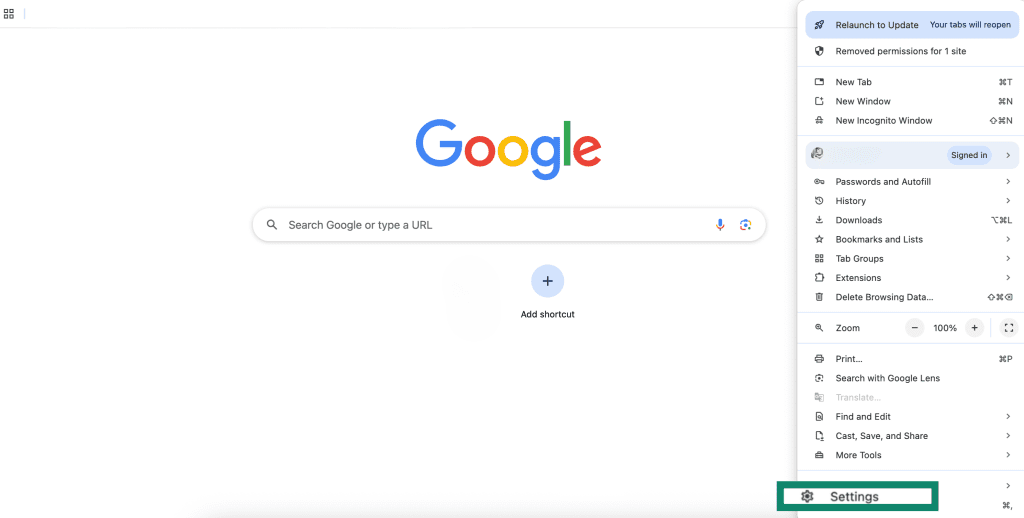
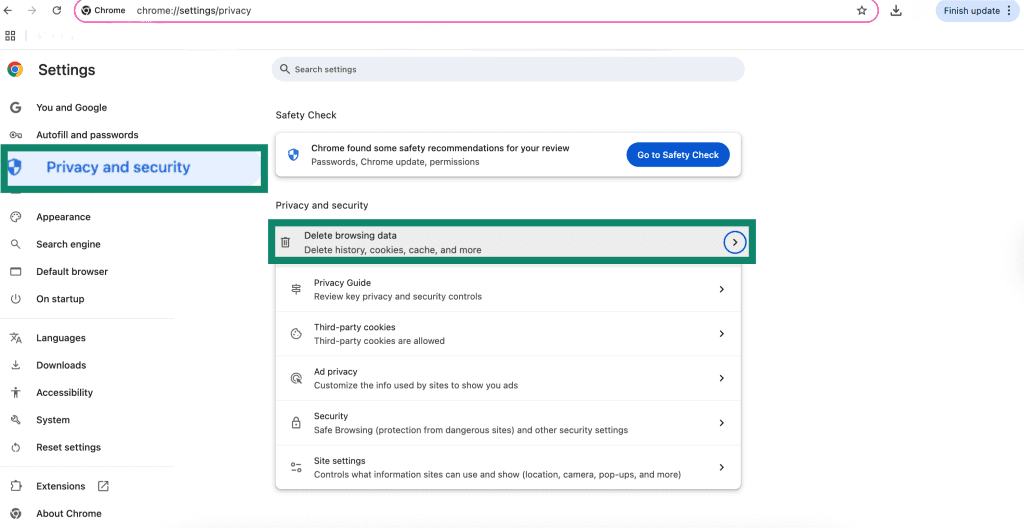
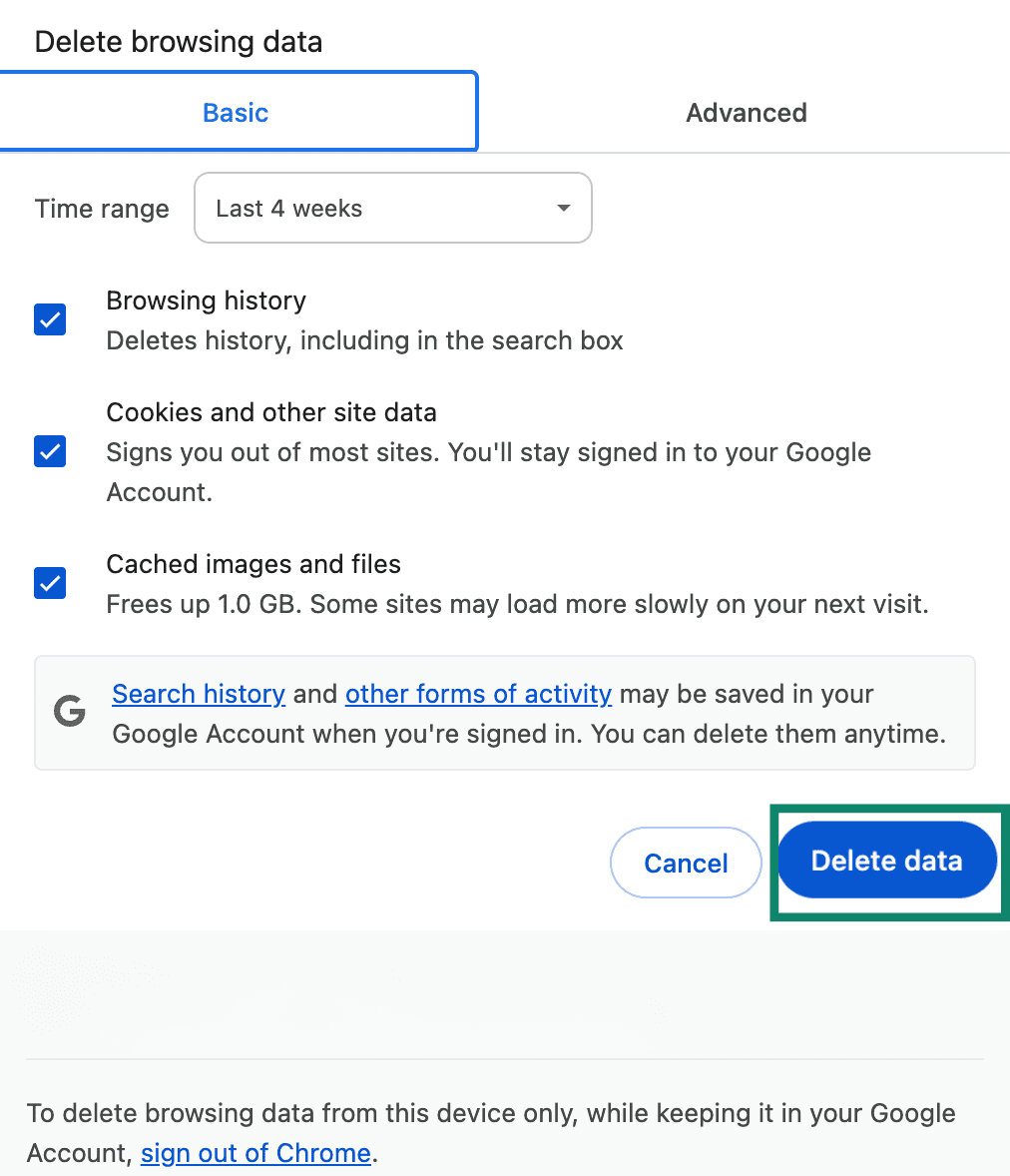
Chrome: Settings → Privacy and security → Delete browsing data → choose “Cookies and other site data” and/or “Cached images and files.”
- Open Google Chrome.
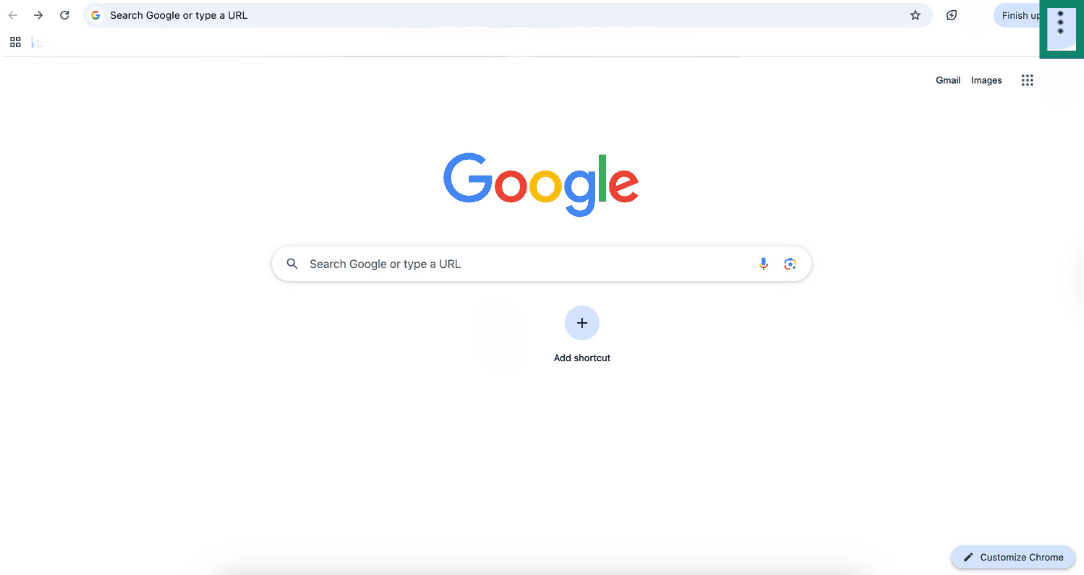
- Click the three-dots menu (⋮) in the top‑right corner.
- Go to Settings.
- Select Privacy and security and click Delete browsing data.
- Choose between the Basic or Advanced tab. Basic lets you quickly clear browsing history, cookies, and cached files. Advanced gives you more control, like clearing saved passwords, site settings, and other data. Check Cookies and other site data and Cached images and files, then click Delete data to finish.
Clear cache and cookies in Safari on Mac and iPhone
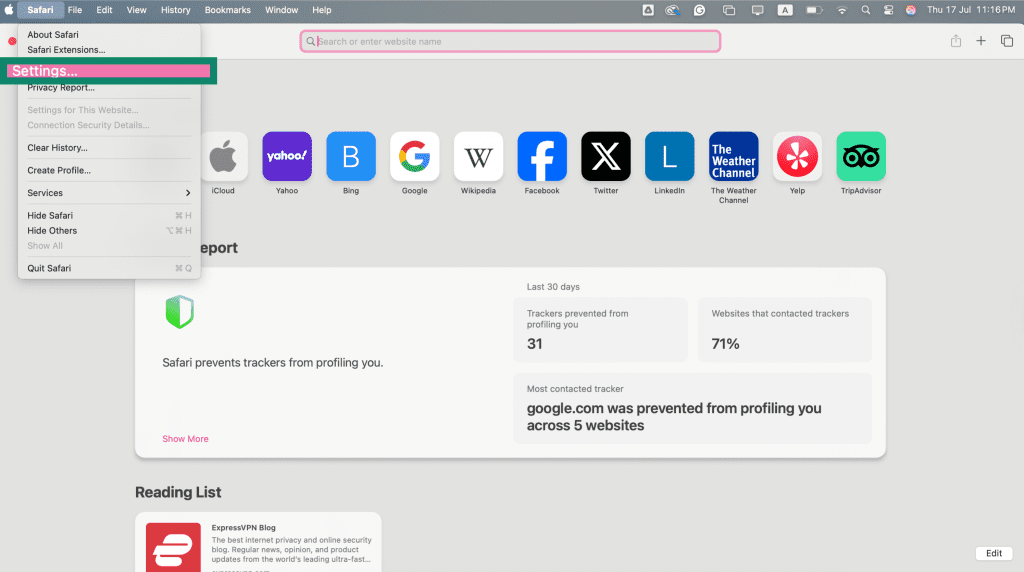
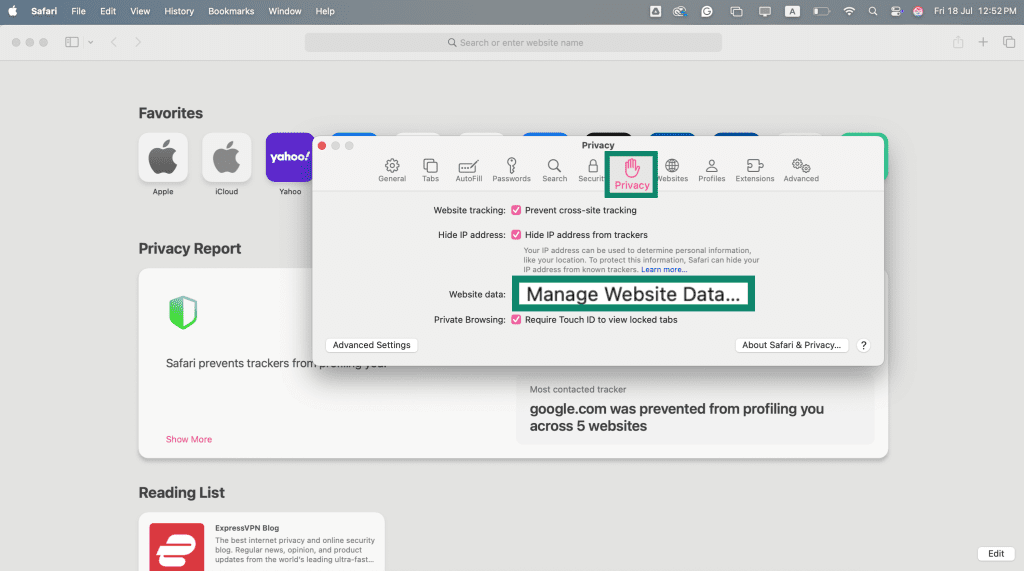
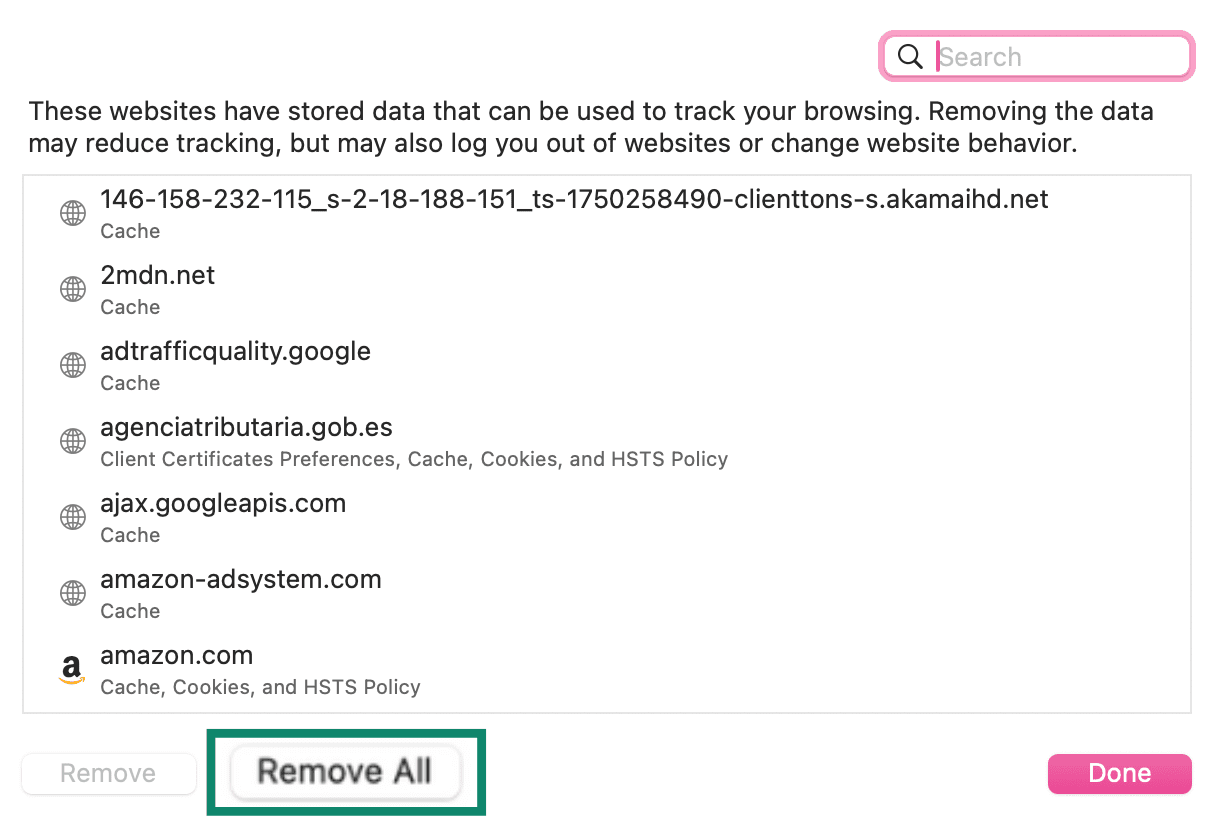
Mac: Safari → Settings → Privacy → Manage Website Data → Remove All.
- Open Safari on your Mac. In the top menu, click Safari and select Settings.
- Go to the Privacy tab and click Manage Website Data.
- Click Remove All to clear cookies and cache.
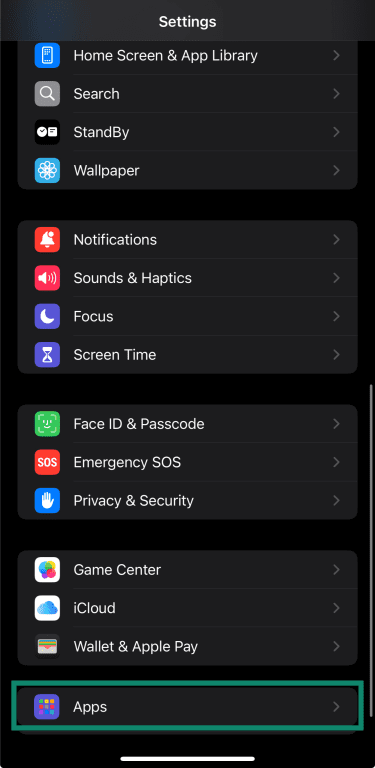
iOS: Settings app → Safari → Clear History and Website Data.
- Open the Settings app on your iPhone or iPad, then tap Apps.
- Choose Safari.
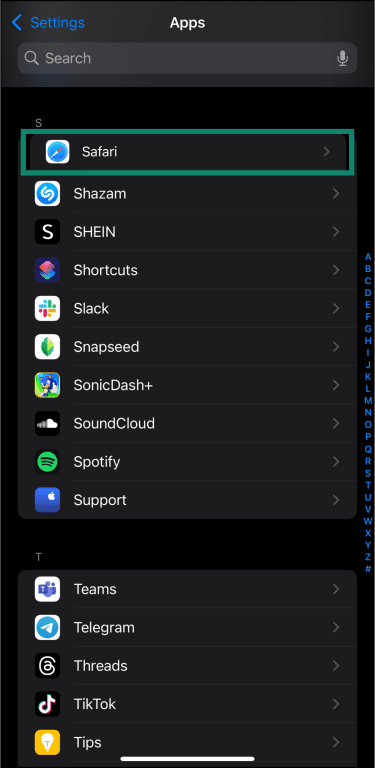
- Scroll down and tap Clear History and Website Data.
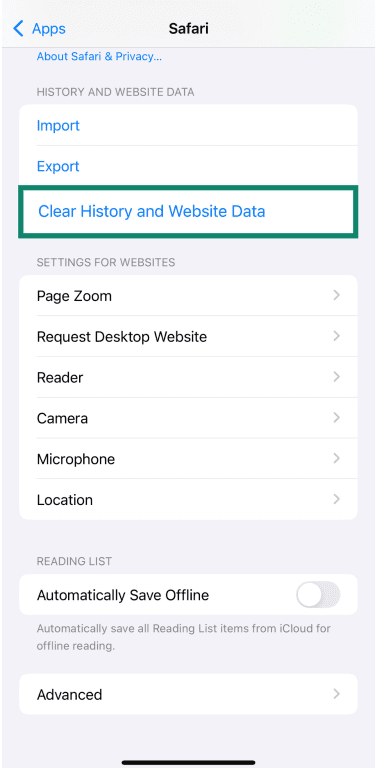
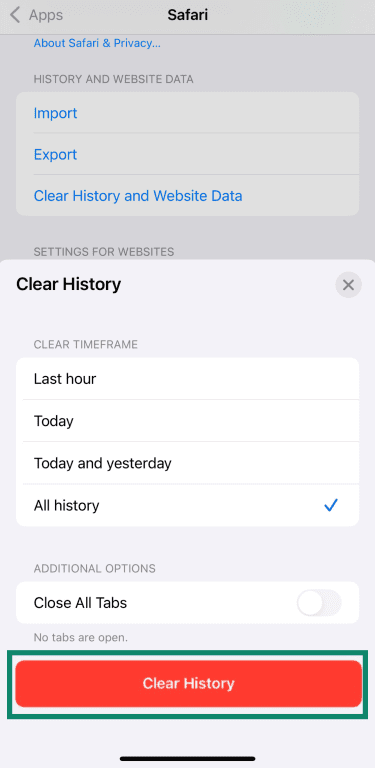
- Select All history and click Clear History to confirm.
Clear cache and cookies in Firefox browser
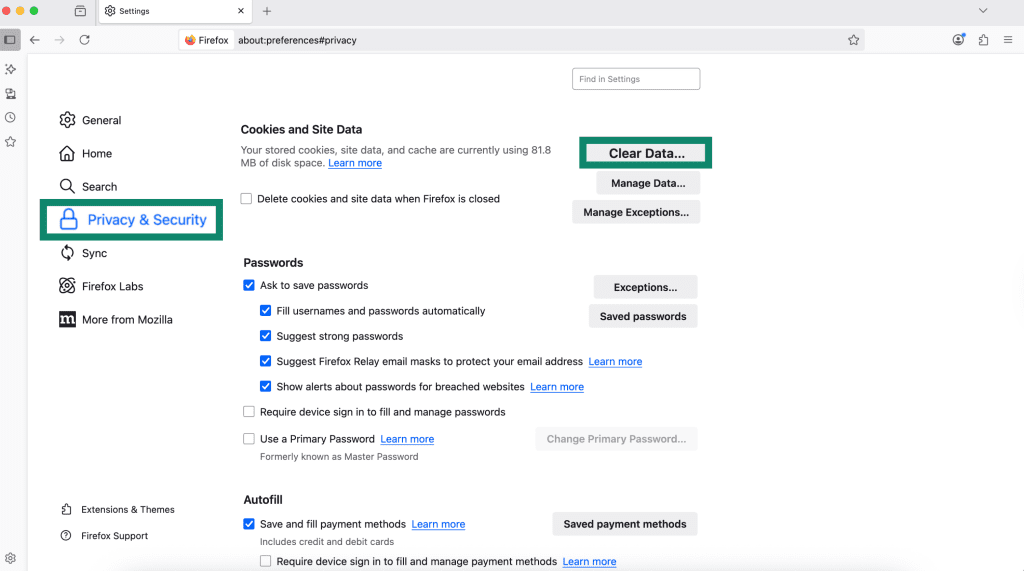
Firefox: Settings → Privacy & Security → Cookies and Site Data → Clear Data → select cookies and/or cached web content.
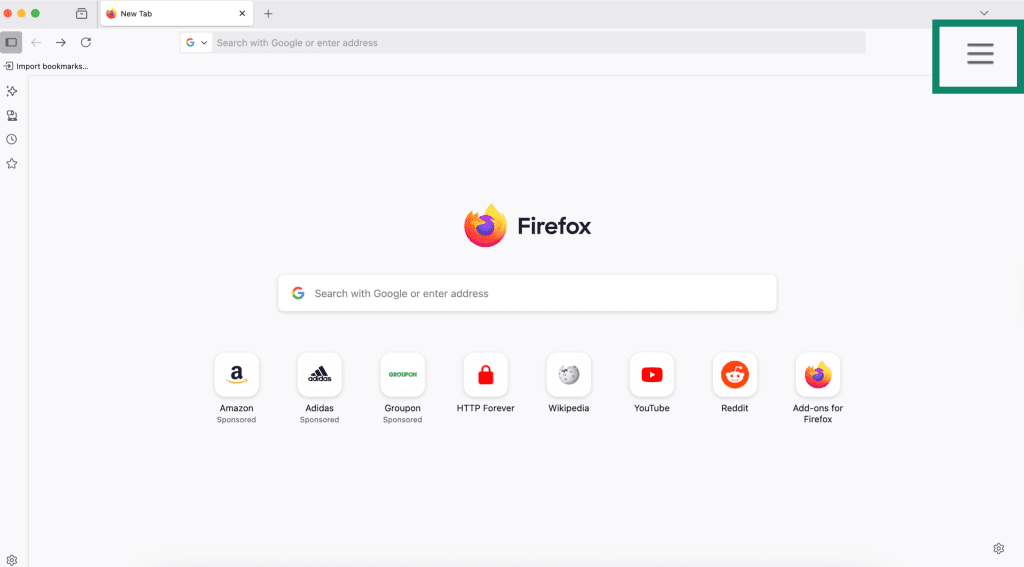
- Open Firefox on your computer and click the menu button (three horizontal lines) in the top-right corner.
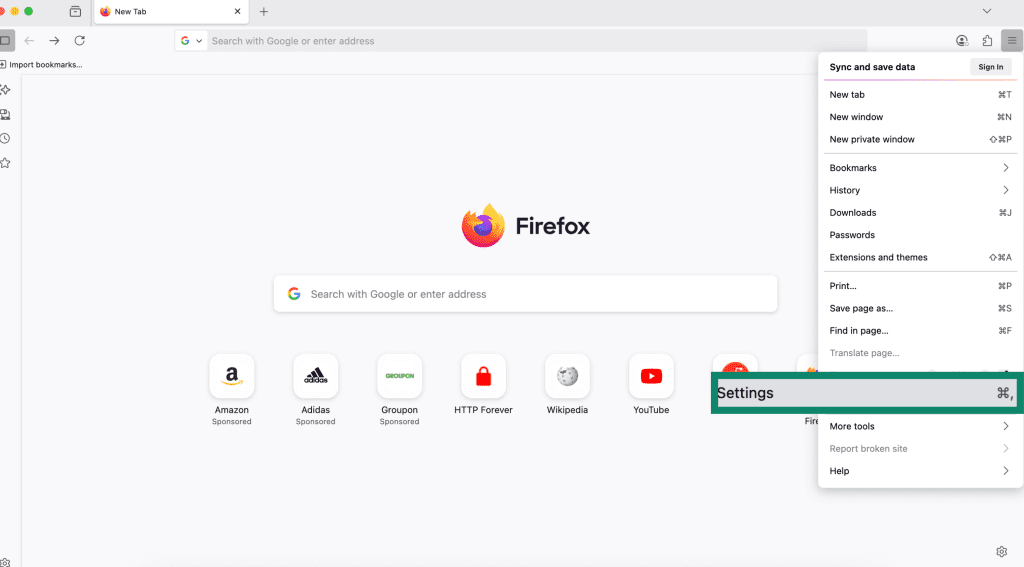
- Select Settings.
- Go to Privacy & Security. Scroll down to Cookies and Site Data and click Clear Data. This option removes saved website data, including cached files and cookies stored from the sites you’ve visited.
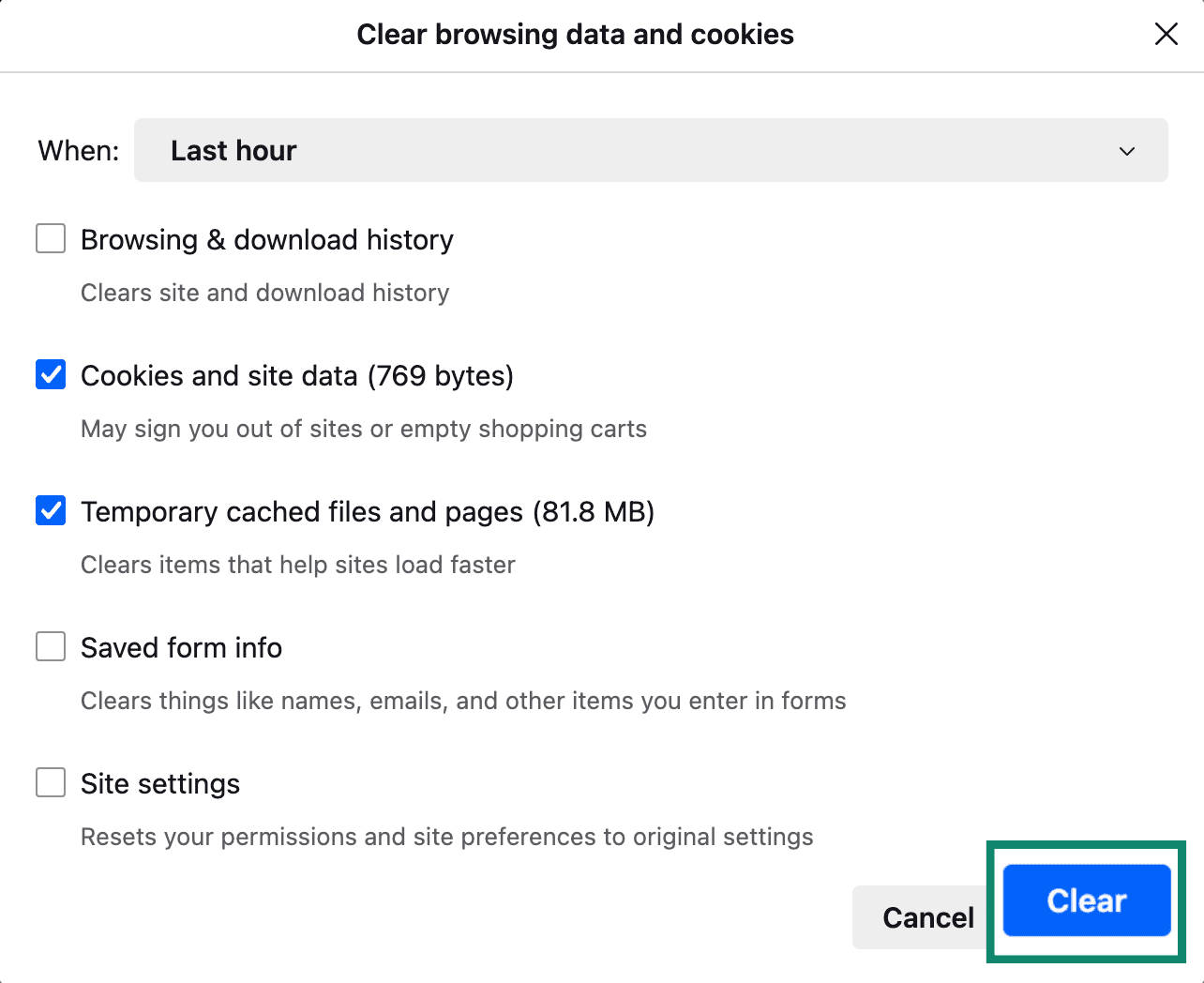
- In the pop‑up window, select Cookies and site data and Temporary cached files and pages. Tap Clear to confirm and finish.
Clear cache and cookies in Microsoft Edge
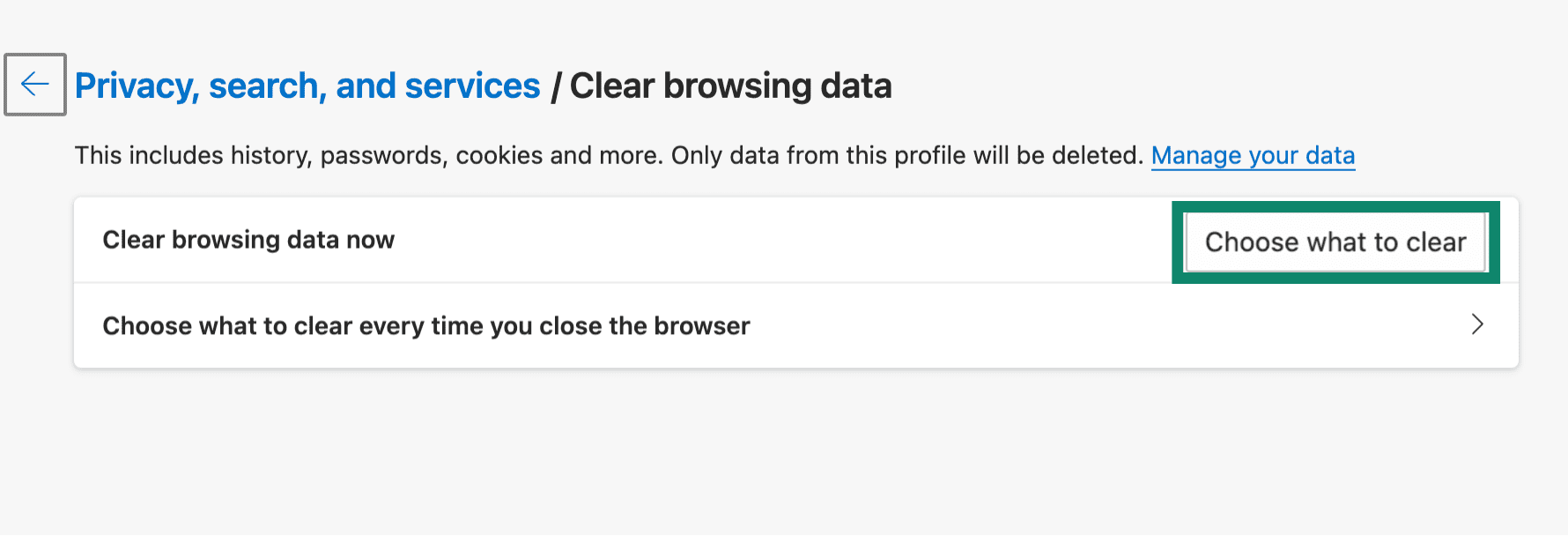
Edge: Settings → Privacy, search, and services → Clear browsing data → Choose what to clear.
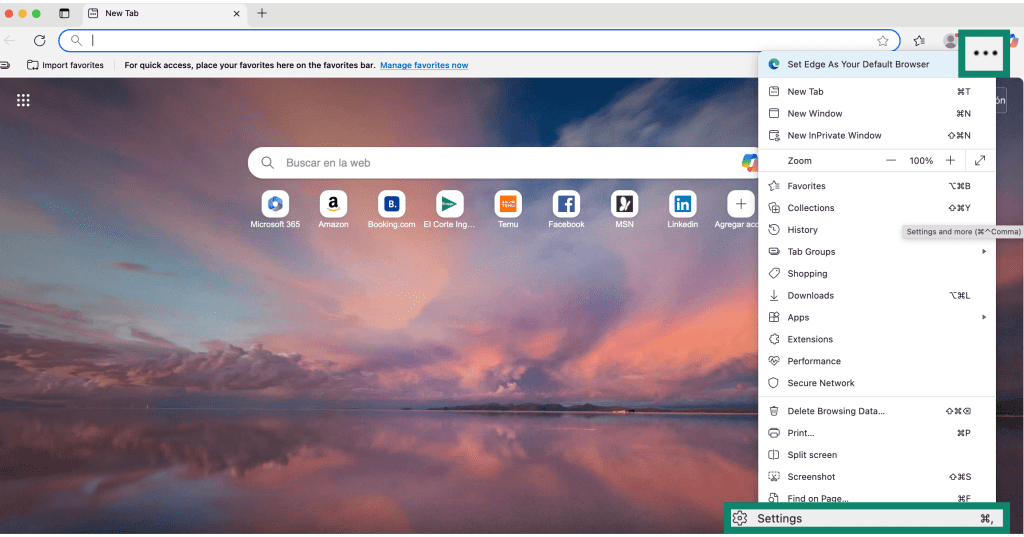
- Open Microsoft Edge on your computer, click the three-dot menu in the top-right corner of the browser window, and select Settings from the dropdown menu.
- In Privacy, search, and services, scroll down to Clear browsing data.
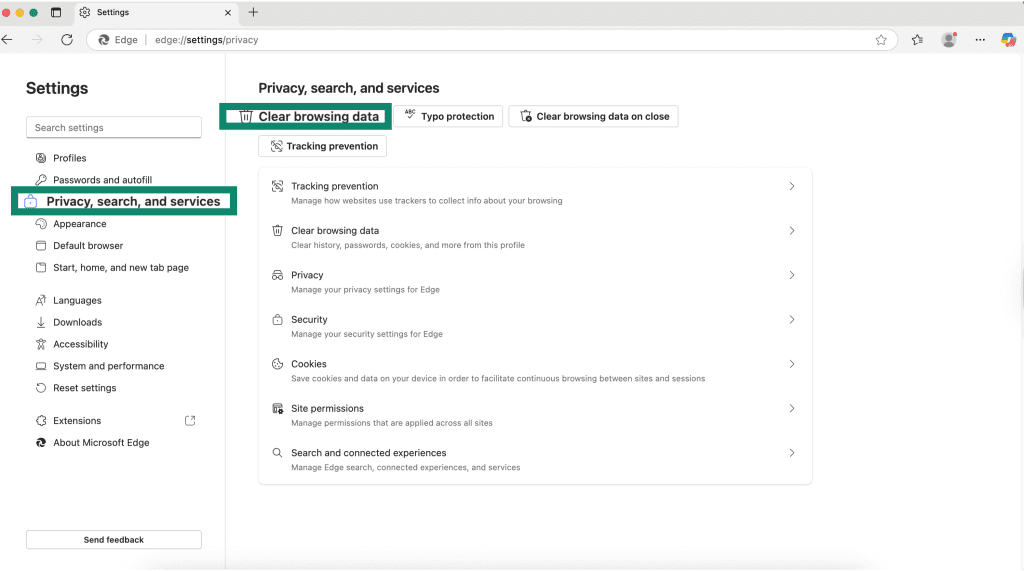
- Click Choose what to clear.
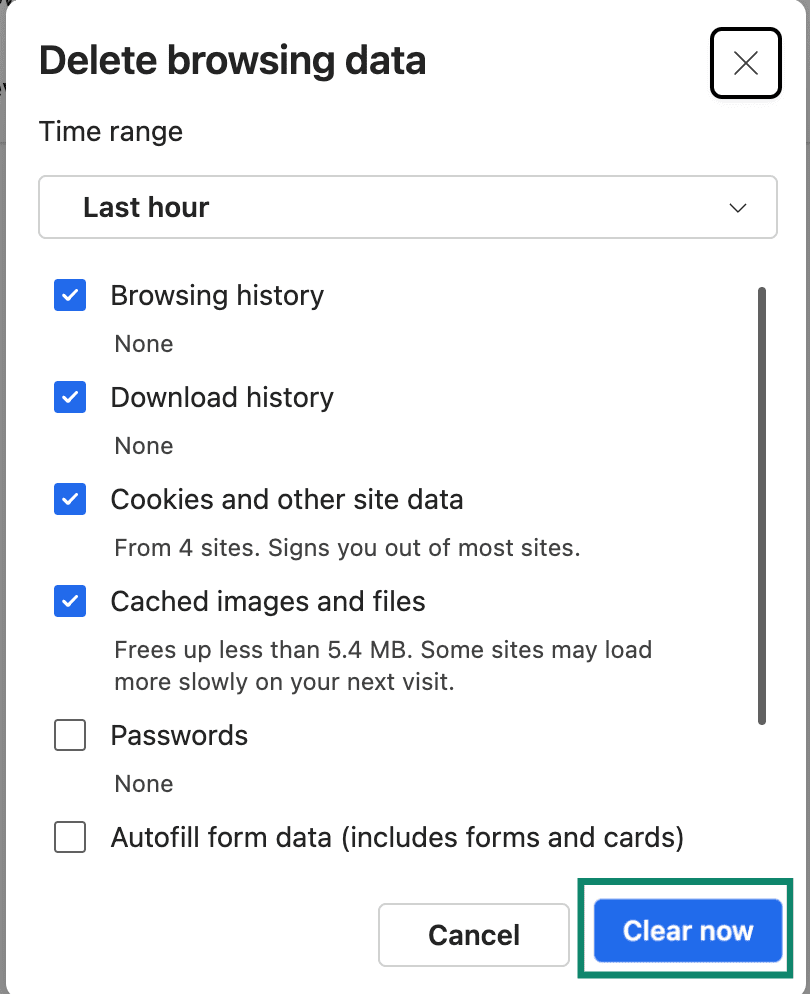
- Select your preferred time range (last hour, 24 hours, 7 days, 4 weeks, or all time). Choose Cookies and other site data and Cached images and files. Click Clear now.
You can also set some browsers to automatically clear data on exit or block certain cookies by default.
Enabling (or Restricting) Cookies Smartly
Sometimes people go all‑in on privacy, block cookies everywhere, and then wonder why half the internet stops working. A lot of sites really do need basic cookies to function properly.
Most modern browsers let you:
- Allow first‑party cookies (for logins and preferences).
- Block third‑party cookies (for cross‑site tracking).
Examples:
- Chrome: Privacy and security → Third‑party cookies → choose whether to allow or block third‑party cookies.
- Safari: Mac/iOS settings allow you to toggle “Block all cookies,” but leaving it off while relying on tracking protection is usually more practical.
- Firefox: Enhanced Tracking Protection set to “Standard” blocks most third‑party trackers while keeping essential cookies.
- Edge: Cookies settings let you block third‑party cookies while allowing necessary ones.
This way, you keep key features working (logins, carts, settings) while dialing down how aggressively you’re tracked.
Best Practices: Fast Browser, Less Tracking
You don’t need to obsess over cache and cookies daily. A few simple habits go a long way.
For performance
- Clear cache occasionally, especially if sites start acting up or space is tight on your device.
- Keep your browser updated to get newer, smarter caching behavior and performance fixes.
For privacy
- Be selective with cookies. Don’t feel obligated to accept everything, especially on shady or non‑encrypted sites.
- Block third‑party cookies where possible; many browsers now do this by default.
- On shared devices, clear cookies when you’re done so other people can’t access your accounts.
- Turn on tracking protection or set the browser to clear data automatically when it closes, if you want things wiped regularly.
- Consider privacy tools or VPNs if you want to further reduce tracking beyond just cookies.
Quick Recap
To wrap it up in one breath:
- Cache = your browser’s local stash of website files, used to speed things up and save bandwidth. It doesn’t identify you and doesn’t get sent back to servers with each request.
- Cookies = small text files about you and your activity, used to keep