If some sites mysteriously won’t load, your streaming service suddenly thinks you’re in another country, or you just don’t want every click tied to your real location, changing your Android IP address is a super useful trick to have up your sleeve.
In this guide, we’ll walk through what an IP address is, the different types you’ll see on Android, and several proven ways to change it—ranging from dead‑simple (VPN, airplane mode) to more hands‑on (static IP, proxies, Tor). We’ll stick to Android UI wording that’s close to what you actually see on modern phones, but keep in mind labels may vary slightly by brand and Android version.
What is an IP address? (And why should you care?)
Before you start flipping switches in Settings, it helps to understand what you’re actually changing.
An IP (Internet Protocol) address is basically your device’s digital home address on the network. It tells websites and apps “send this data to that phone,” so your traffic doesn’t end up at someone else’s device.
Whenever you go online, sites and apps can see the IP your connection is using. That means they can often:
- Guess your approximate location (city/region level)
- See who your ISP or mobile carrier is
- Tie your different visits and actions together into a profile over time
That’s why changing your IP—or making it less obviously tied to you—can help with both troubleshooting and privacy.
The different IP addresses on Android (public vs. private, dynamic vs. static)
Android doesn’t just have “one IP.” You’ll usually deal with a few different flavors, and knowing which is which keeps you from chasing your tail in Settings.
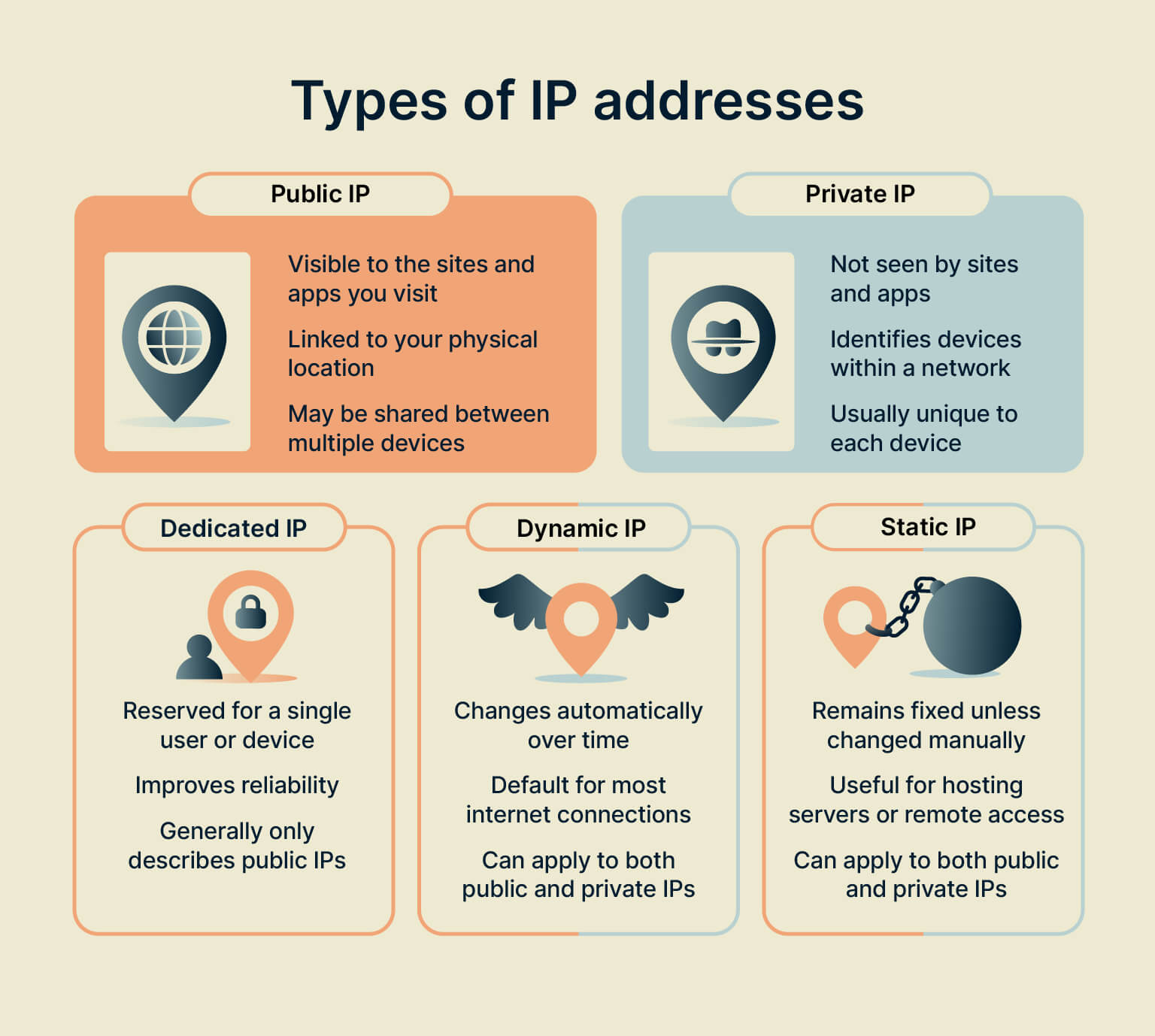
Public IP (the one the internet sees)
Your public IP is the address visible to websites, apps, and services.
- On mobile data, it’s assigned by your phone company.
- On Wi‑Fi, it comes from your home or office ISP via your router.
This is the IP used for things like:
- Geo‑based content (what catalog a streaming app shows you)
- Basic location lookups (e.g., “You’re logging in from a new city”)
- Ad and tracking profiles
Private IP (your local, in‑network address)
Your private IP (also called local IP) is only used inside a network—like your home Wi‑Fi.
Example: At home, your phone, laptop, and smart TV all share one public IP on the internet, but each device gets its own private IP from the router (like 192.168.1.12).
Changing this kind of IP is mainly useful for network troubleshooting or when you need a consistent local address (for things like FTP, media servers, or using your phone as a Wi‑Fi camera).
Dynamic vs. static IP
- Dynamic IP: Changes automatically over time or each new connection. This is the default for most home networks and mobile carriers.
- Static IP: Manually set by you (on the device) or permanently assigned by your ISP/VPN. It stays the same until you intentionally change it.
On Android Wi‑Fi networks, you can manually switch from dynamic (DHCP) to Static and type in your own private IP.
Why you might want to change your IP address on Android
Let’s be real: Most people don’t wake up craving a new IP for fun. Here’s when it actually matters.
1. Improve privacy and reduce tracking
Because your public IP can be used to tie sessions, logins, and searches together, changing it—especially through a VPN—can make it harder for websites, ad networks, and even your ISP to build a detailed profile around your activity.
With a VPN, your entire connection is encrypted, so:
- Your carrier sees that you’re using a VPN, but not what you’re doing.
- Websites see the VPN server’s IP, not your real one.
2. Fix weird network problems
Sometimes your connection issues are literally “an IP problem”:
- Two devices on the same Wi‑Fi accidentally get the same private IP
- Your router hands out an invalid or glitchy address
- A site or service temporarily blocks your public IP
Changing your IP—via airplane mode, router restart, or assigning a new static private IP—can often clear that up.
3. Get a better online experience while traveling
When you’re abroad, some services behave differently or get twitchy because your IP suddenly screams “different country.”
Changing your IP (for example, using a VPN to appear back in your home region) can help with:
- Accessing your usual services more smoothly
- Seeing familiar content and search results
- Occasionally finding better deals or localized pricing
Method 1: Use a VPN to change your IP address on Android (best all‑round option)
If you want a method that’s easy, secure, and works across almost all apps on your phone, a VPN should be your go‑to.
How a VPN changes your IP
A VPN app encrypts your internet traffic and routes it through a secure server somewhere else in the world.
To any website or app:
- Your connection appears to come from the VPN server’s IP, not your own
- The server’s location is what they see as your “approximate location”
This gives you a new public IP and a nice privacy boost in one shot.
Step‑by‑step: Set up a VPN on Android
Here’s the basic flow (the UI will be similar across reputable VPN apps):
- Download a reputable Android VPN appGet it directly from the provider’s official website or the Google Play Store. Look for strong encryption, a clear no‑logs policy, and a good Android app.
- Install and open the appLaunch it and log in or create an account.
- Allow VPN permissionsThe first time you connect, Android will show a prompt asking you to allow the VPN to set up a secure connection. Tap Allow.
- Pick a server location and connect
- Tap a big Connect button for a “smart” or “optimal” server
- Or choose a country/city from the list if you want to appear in a specific region
- Verify your new IPOpen your browser and visit an IP checker (e.g., your VPN provider’s IP test page). The IP and location shown should now match the VPN server, not your real one.
That’s it—you’re now online with a different public IP across your apps.
Pros and cons of using a VPN
Pros
- Hides your real public IP; sites and apps see the VPN server’s IP instead
- Encrypts your entire connection, shielding it from Wi‑Fi snoops and ISPs
- Lets you pick from many server locations around the world
- Often includes bonuses like ad/tracker blocking, split tunneling, or kill switch
- No nerdy manual setup after the initial install
Cons
- Good VPNs usually require a paid subscription
- Very slow or free VPNs might have data caps, fewer servers, or questionable privacy
- Some sites and services may limit or block traffic from known VPN servers
- Some VPNs don’t fully handle IPv6 traffic out of the box
If you want “set it and forget it” privacy plus an easy way to change your IP on Android, a VPN is pretty much the sweet spot.
Method 2: Use Tor on Android to change your IP (more anonymity, less speed)
If your main goal is masking your IP and boosting anonymity—rather than streaming or gaming performance—the Tor network is another option.
How Tor works on Android
Tor routes your traffic through a chain of volunteer‑run servers (relays), with multiple layers of encryption, and finally exits through an exit node. Sites see the IP of that last node, not yours.
However:
- It’s much slower than a VPN, especially for media‑heavy stuff
- By default, it mostly covers the browser, not all your apps
Option A: Tor Browser (simplest)
If you just want a different IP for web browsing:
- Install Tor Browser from the Google Play Store.
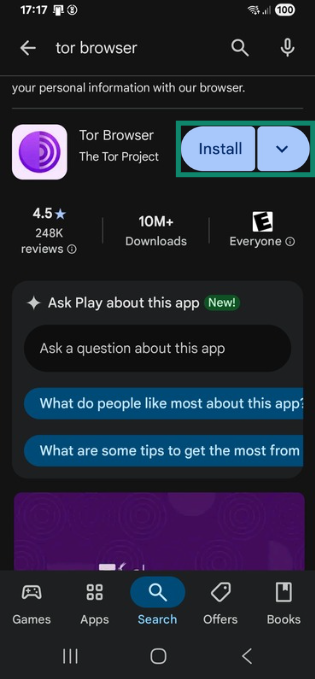
- Open the app and tap Connect.
- Browse inside Tor Browser; sites you visit there will see the Tor exit node’s IP, not your real one.
You can’t easily pick a specific country for your IP, so it’s not ideal for region‑specific streaming, but it’s useful for extra anonymity.
Option B: Orbot (Tor for selected apps)
If you’d like some apps beyond the browser to go through Tor:
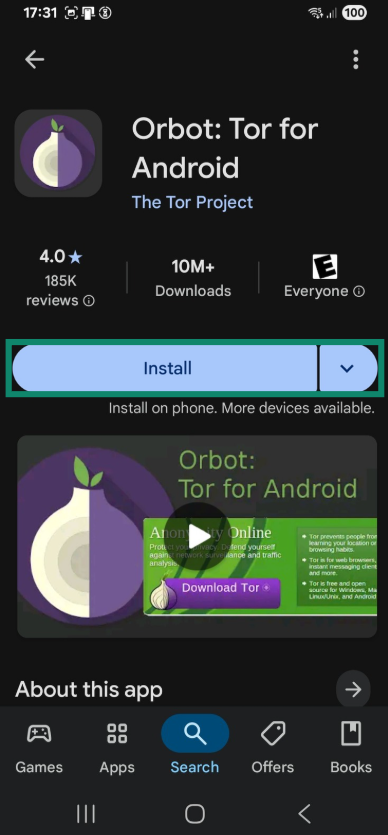
- Install Orbot from its official site or the Play Store.
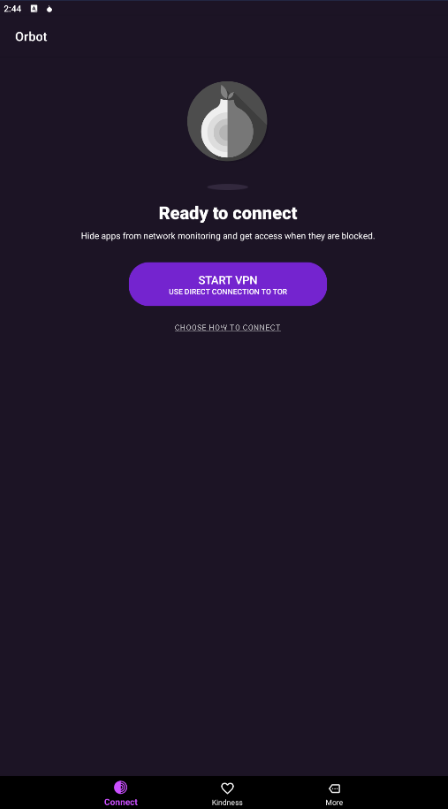
- Tap Start VPN and approve the Android VPN permission request.
- Use Choose apps to pick which apps should route over Tor.
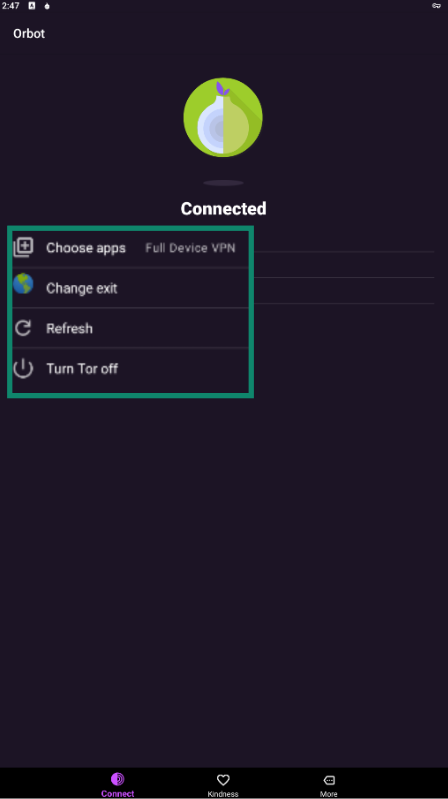
- Optionally, tap Change exit to request an exit node in a different location (choices are more limited than most VPNs).
Keep in mind:
- Tor is usually slower than a good VPN
- Only traffic that actually goes through Tor is covered
- Exit node traffic is not encrypted beyond the last hop unless you’re using HTTPS
Method 3: Change your IP with airplane mode (fast, but limited)
Sometimes you just want a quick refresh of your mobile data IP without installing anything. Toggling airplane mode can often do the trick.
How it works
When you:
- Turn airplane mode on, Android disconnects your radio (cellular, Wi‑Fi, etc.)
- Turn it off again, your phone re‑registers with the mobile network and is usually assigned a new public IP from your carrier’s pool
This:
- Only affects your mobile data IP
- Does not encrypt anything
- Leaves your traffic fully visible to your carrier and local networks
Steps
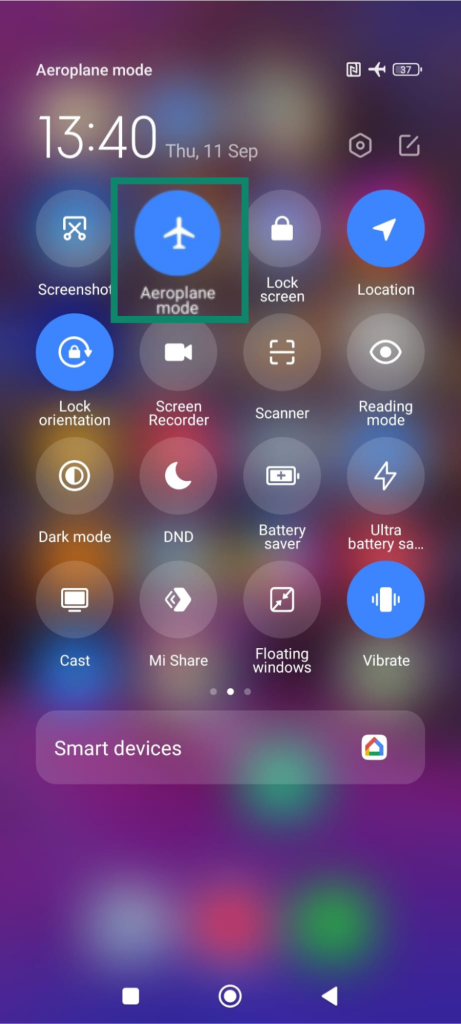
- Swipe down to open Quick Settings.
- Tap the Airplane mode icon to enable it.
- Wait a few seconds.
- Tap it again to disable and reconnect to mobile data.
Now, if you check your public IP with an online tool, there’s a good chance it has changed.
This is handy for light troubleshooting, but don’t mistake it for a privacy solution.
Method 4: Manually set a static private IP on Wi‑Fi (for local control)
If what you need is stability or troubleshooting inside your own Wi‑Fi—say, for FTP, streaming from your phone, or avoiding IP conflicts—you can manually assign a static private IP in your Android settings.
This only changes your local IP within that Wi‑Fi network. It does not change your public IP on the internet and doesn’t add privacy.
Steps (may vary slightly by device)
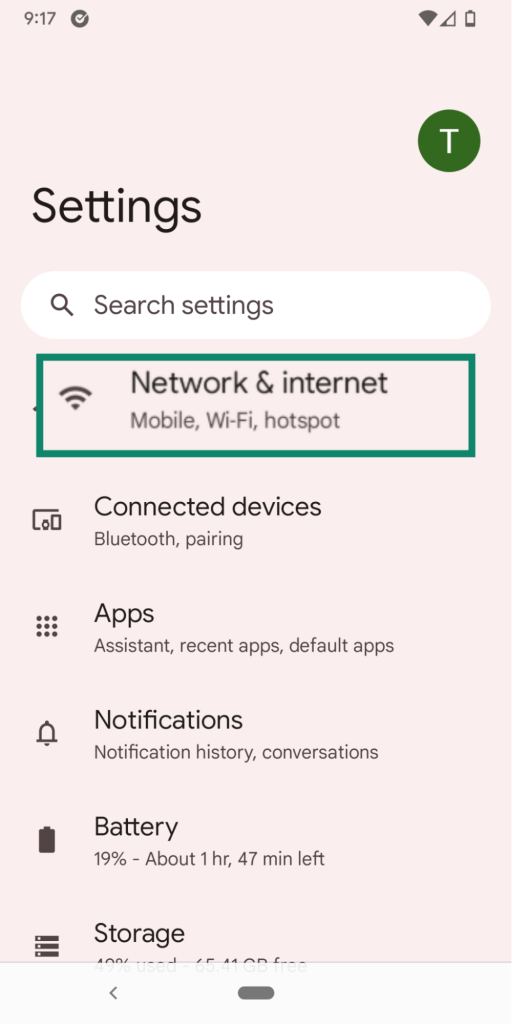
- Open Settings → Network & Internet.
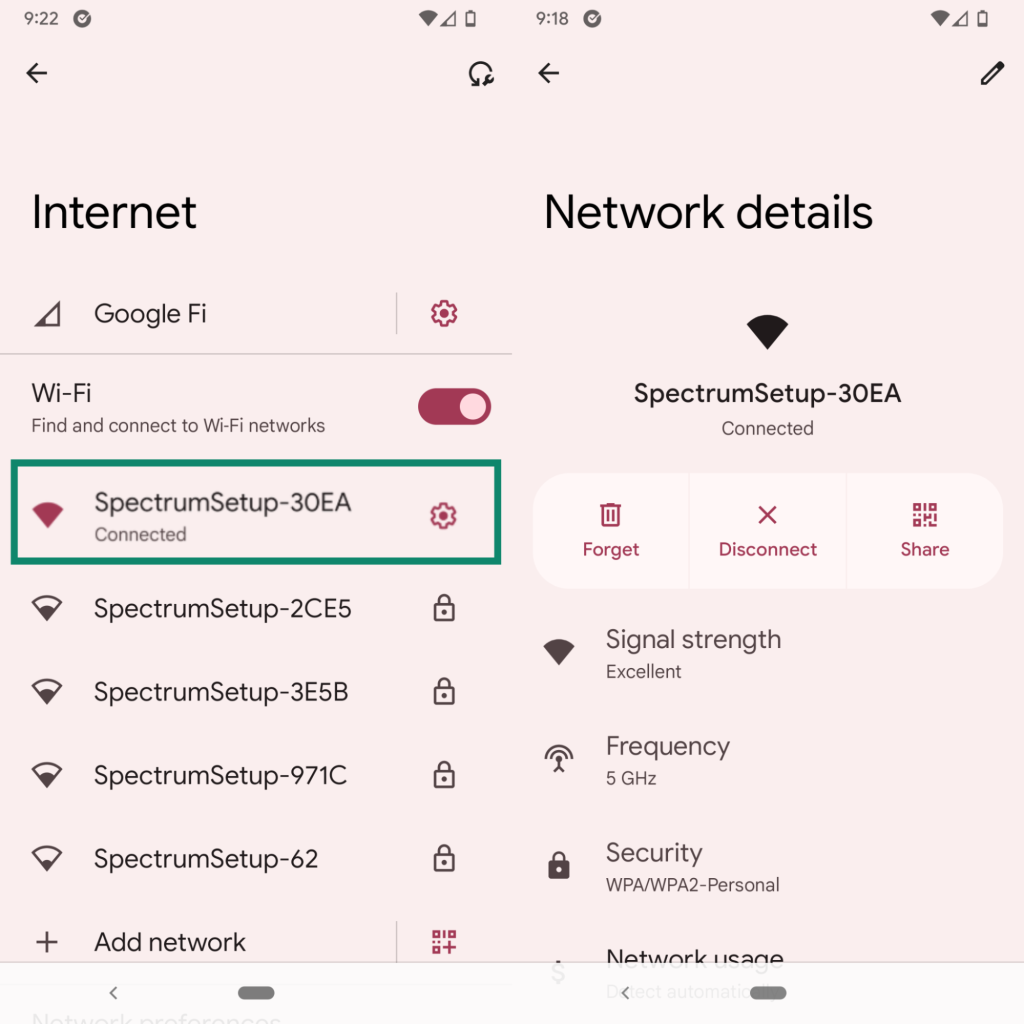
- Tap Wi‑Fi and select your connected network.
- Open Advanced options or View more.
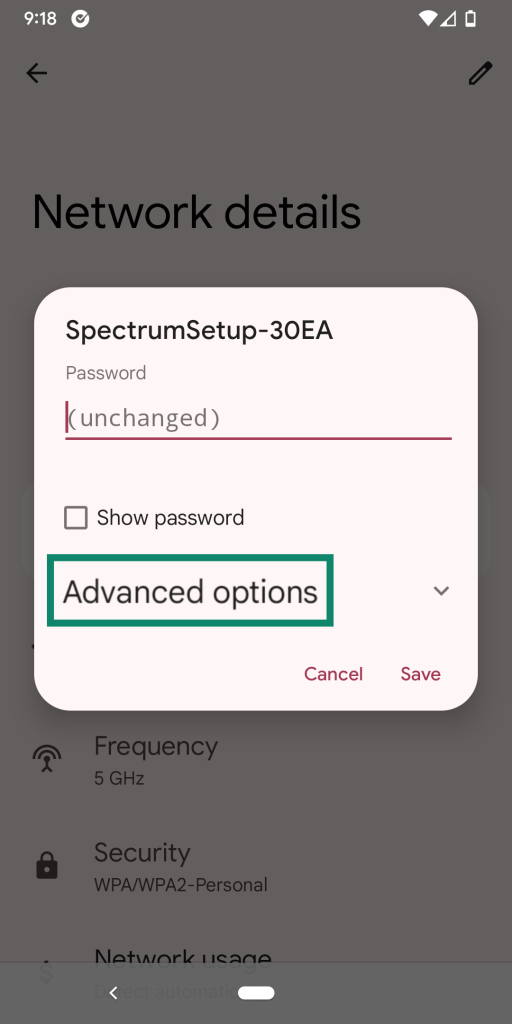
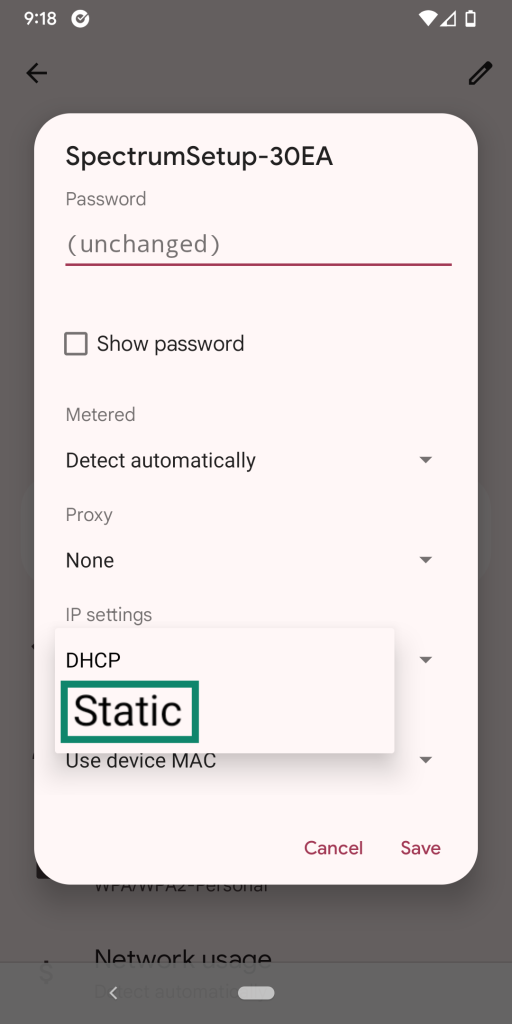
- Under IP settings, change DHCP to Static.
- Enter a suitable private IP address within your router’s range (often you’ll just tweak the last number, like going from 192.168.1.23 to 192.168.1.50). Keep Gateway and DNS as they are unless you know what you’re doing.
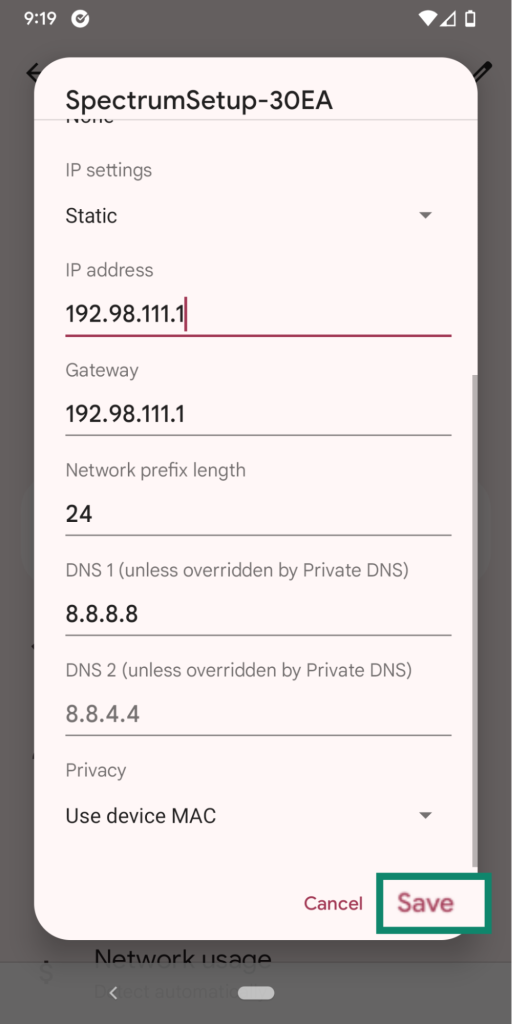
- Tap Save.
If you pick an IP that another device is already using, you can run into conflicts, so try not to guess wildly.
This is great when:
- You’re setting up your phone as a media server or Wi‑Fi camera
- You need a consistent IP for specific tools on your LAN
- You’re troubleshooting local network hiccups
Method 5: Use proxies and SOCKS5 to change your IP (but read the warnings)
If you can’t use a VPN, there are old‑school alternatives that still change what IP websites see—but they come with trade‑offs.
Proxy websites
Web proxies are simple: you visit a proxy site in your browser, type in the URL you want, and it fetches the page for you. The site you reach sees the proxy’s IP, not yours.
Sounds handy, but:
- Standard proxies don’t encrypt your traffic
- Your ISP or Wi‑Fi admin can still see domains you’re visiting
- You should never enter passwords or sensitive data through a random proxy site
- They typically only affect the single browser tab, not your whole phone
SOCKS5 proxies
SOCKS5 proxies are a bit more flexible. You configure them per‑app (for example, in a browser or another internet tool), and traffic from that app gets routed via the proxy server with its own IP.
Caveats:
- Some SOCKS5 setups support encryption, others don’t—so you may still leak plenty of info
- Setup is more technical than tapping “Connect” in a VPN app
- Only the apps you manually configure will use the proxy
Between VPNs, Tor, and proxies, proxies are usually the least private and often the most fiddly. Still, they can be useful for niche situations if you know what you’re doing.
How to check your Android IP address (public and private)
Whatever method you use, always verify that your IP actually changed. Don’t just assume it worked.
Check your public IP (what websites see)
- Open your browser (Chrome, Firefox, etc.).
- Visit a public IP checker, such as your VPN provider’s IP test page, or iplocation.io.
- Note the IP, location, and ISP shown. That’s your current public IP.
Do this:
- Before connecting to a VPN, Tor, or proxy
- After connecting, to confirm that the IP and location really changed
Check your private IP (inside your local network)
To see your local IP on Android:
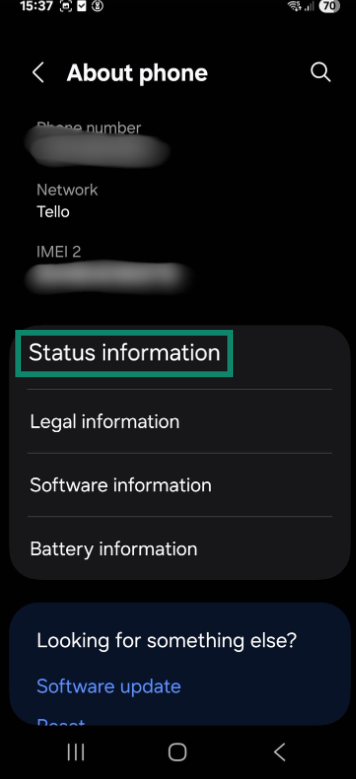
- Open Settings.
- Scroll to and tap About phone.
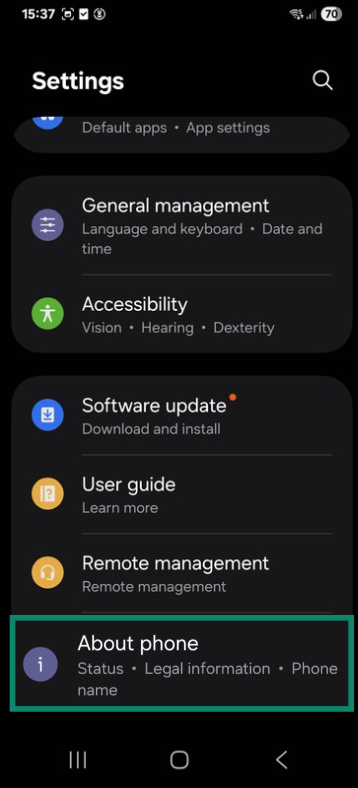
- Tap Status information (or similar).
- Look for IP address—this is your private/local IP on the current network.
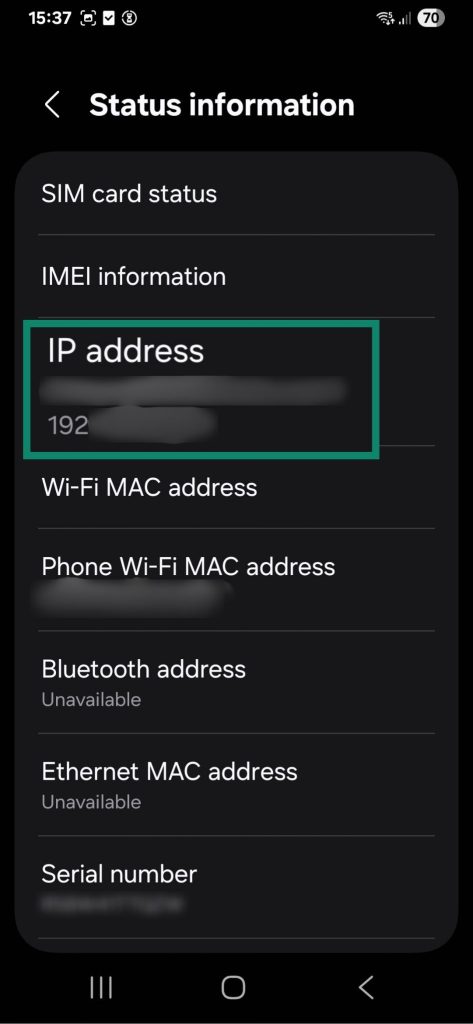
This is the one that changes when you tweak IP settings on Wi‑Fi, not when you fire up a VPN.
Which method should you use?
If you’re staring at all these options wondering which button to actually hit, here’s the bottom line:
- Want better privacy and flexibility across most apps?→ Use a VPN. This is the best all‑round option for changing your public IP on Android, with strong security baked in.
- Need extra anonymity and don’t care about speed?→ Use Tor Browser (or Orbot for selected apps).
- Just troubleshooting a flaky mobile connection?→ Toggle airplane mode or restart your router to refresh your public IP.
- Working on local network setups (servers, FTP, Wi‑Fi camera, etc.)?→ Manually assign a static private IP in Wi‑Fi settings.
- Absolutely can’t use a VPN but must change the IP for browsing only?→ Consider proxies or SOCKS5, but be aware they’re less secure and can be tricky to set up correctly.
Final thoughts
Changing your Android phone’s IP address isn’t just a geeky party trick—it’s a practical way to fix odd connectivity issues, wrestle back a bit of privacy, and take more control over how the internet “sees” you.
For everyday users who don’t want to babysit settings, a reputable VPN app is the cleanest, most reliable route: one tap, new IP, plus an encrypted tunnel around all your traffic.
If you’re more of a tinkerer, Tor, static IPs, and proxies give you extra knobs to twist—just remember that not every IP change is created equal when it comes to privacy, security, and convenience.
Play around, test your IP before and after each method, and you’ll quickly get a feel for which approach fits your workflow (and your patience level) the best.