
Incognito mode sounds like a magic “erase my tracks” button—but it isn’t. It mainly hides your activity from other people using the same device, not from your ISP, employer, or the network you’re on.

What Incognito Mode Really Does
Before you start digging for hidden logs, it helps to be clear on what incognito/private browsing actually changes.
When you open an incognito or private window, your browser:
Does not store locally:
- Visited pages in normal history (no entries in the regular History menu)
- Search queries tied to this session (in the browser’s own history)
- Cookies from the session (they’re dropped when you close all incognito windows)
- Form data & autofill (usernames, addresses, etc., won’t be saved)
- Session cookies for sites you log into (they die when you close the incognito window)
But it still leaves or allows:
- Downloads & bookmarks → files you download and bookmarks you save stay on the device, just like normal.
- Your IP address → websites, ISPs, and network admins still see your real IP unless you use extra tools like a VPN.
- DNS logs → the system or router can log which domains you visited (this is the big one).
- Account‑level tracking → if you’re logged into Google, Facebook, etc., they can still attach activity to your account depending on your settings.
- Network‑level monitoring → your ISP, employer, school, or Wi‑Fi owner can still log domains and often more.
So incognito is great for: “hide from the next person using this laptop.”It’s not great for: “hide from my ISP / boss / government / ad networks.”
Where Incognito History Can Still Be Seen
Even if your browser doesn’t save history, your activity can leak in a few other places.
DNS Cache on Your Device
When you visit a site, your system asks DNS servers “what’s the IP for this domain?” and stores the answer in a DNS cache for speed. That cache can show domains you visited—including in incognito mode. – On Windows, the DNS cache is easy to view via ipconfig /displaydns.
- On macOS, DNS queries can be viewed through Console + mDNSResponder logs.
- On Android/Chrome, there’s a browser‑level DNS view at chrome://net-internals/#dns (though Chrome’s in‑memory cache for incognito is automatically cleared when you close the session).
- On iPhone, you don’t get a nice UI, but the OS still keeps DNS info, which can be flushed via restart or toggling airplane mode.
Monitoring & Parental‑Control Apps
Monitoring apps (mSpy, KidsGuard, Hoverwatch, FamiSafe, Surfshark/Avast examples) can log: – Sites visited, including in incognito
- Timestamps & frequency
- Sometimes even keystrokes
They’re usually sold as parental‑control or employee‑monitoring tools, but from a privacy standpoint, they’re basically surveillance. Installing them means accepting that your “private” browsing can be logged somewhere else.
Router & Network Logs
If someone controls the Wi‑Fi router (home, office, school), they can often see: – Which domains were accessed from which device
- Sometimes timestamps and volume of data
Again, this is completely independent of incognito mode: the router only sees IPs and domains, not “incognito vs normal tab.”
Browser Extensions
Some extensions can explicitly log incognito activity if you allow them to. Example: Off The Record History for Chrome can record and later show your incognito history once you:
- Install it
- Enable “Allow in incognito” on its details page
- Optionally set how long to keep the data
Once that’s on, incognito is no longer “forgetful” for that browser profile.
How to See Incognito History on Different Devices
Let’s go device by device. Remember: you’re generally seeing domain‑level traces (DNS), not a pretty browser history with page titles and favicons.
Windows: View Incognito History via DNS Cache
On Windows, incognito domains show up in the DNS cache unless it’s already been cleared or expired. Steps:
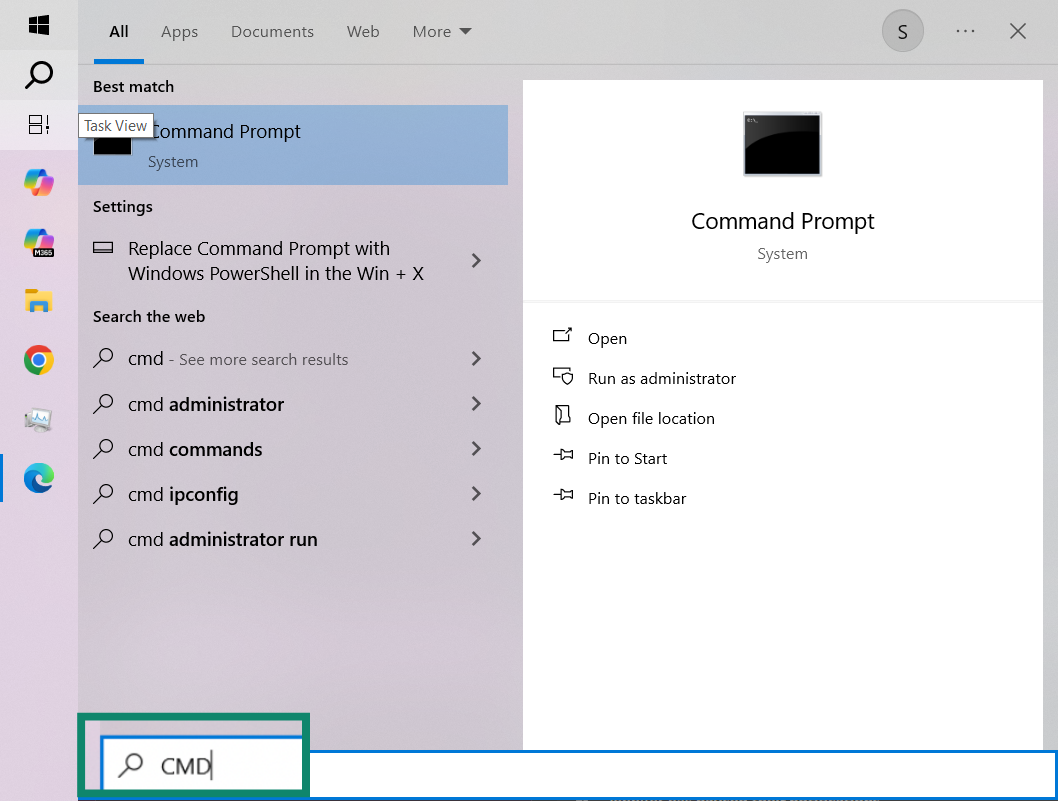
1. Click on the Windows Start menu and type cmd.
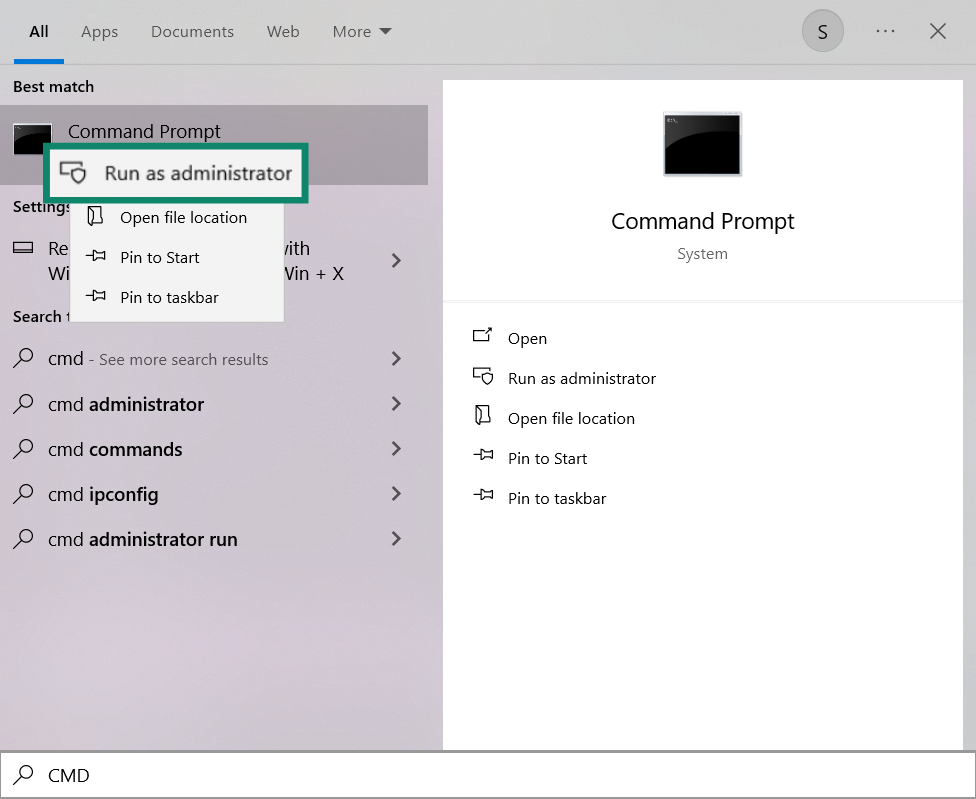
2. Right‑click Command Prompt → Run as administrator.
3. In the window, type:
ipconfig /displaydns
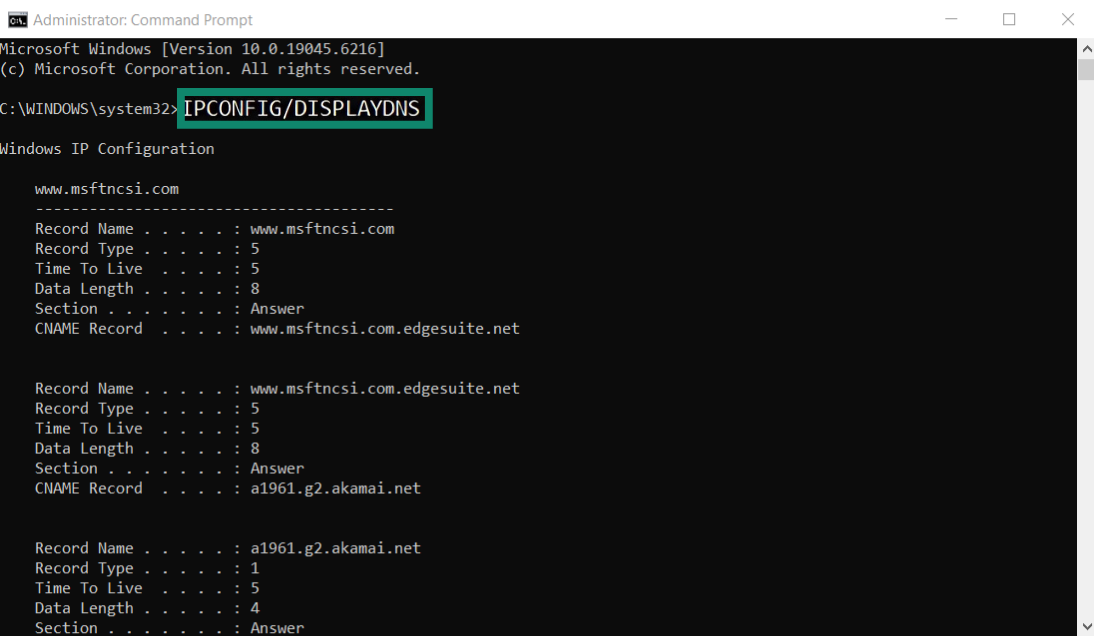
and press Enter.
You’ll see a list of recently resolved domains—many of which may be from your incognito sessions.
macOS: View Incognito History via mDNSResponder Logs
macOS doesn’t show “history” directly, but you can surface DNS lookups done during private browsing. Steps:
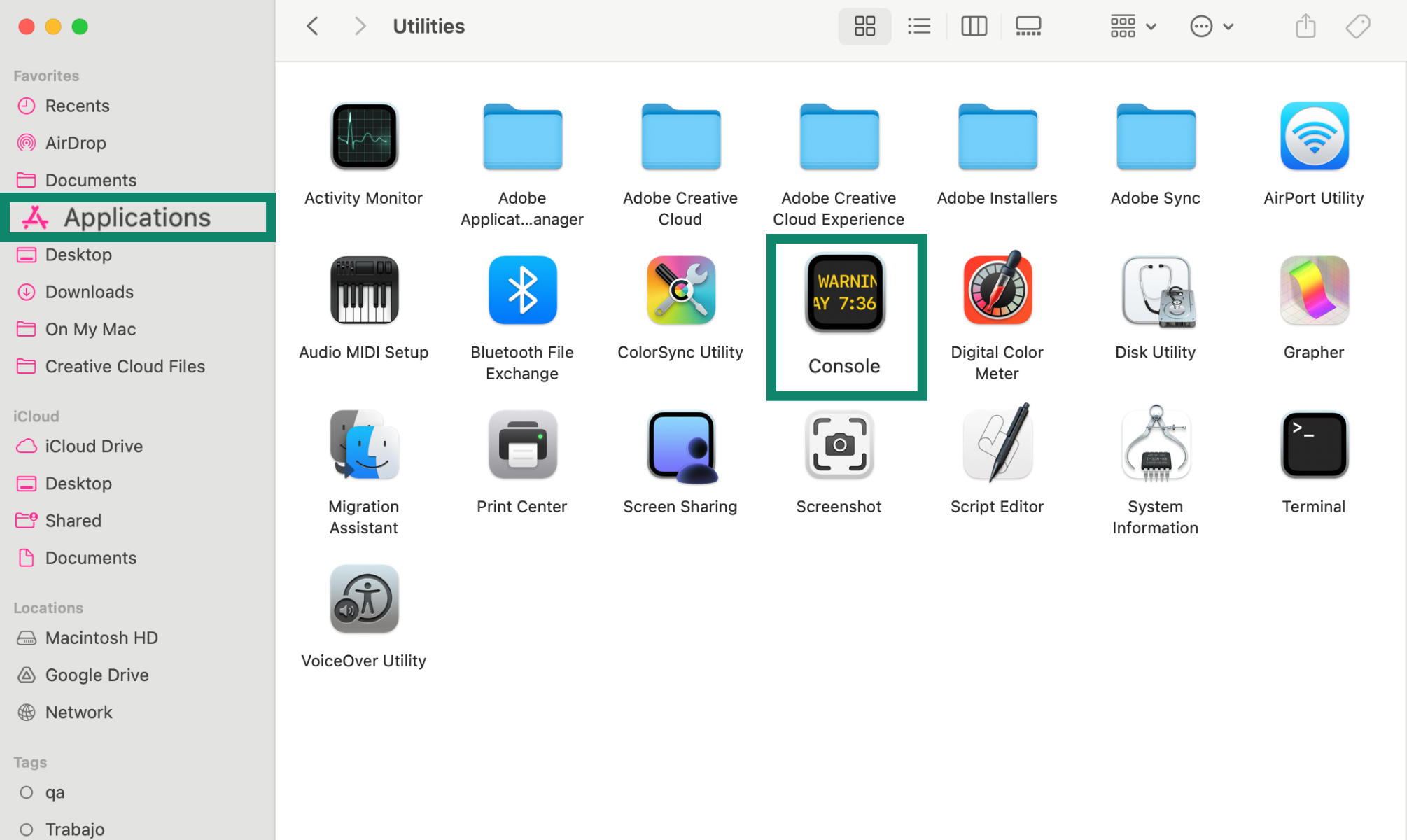
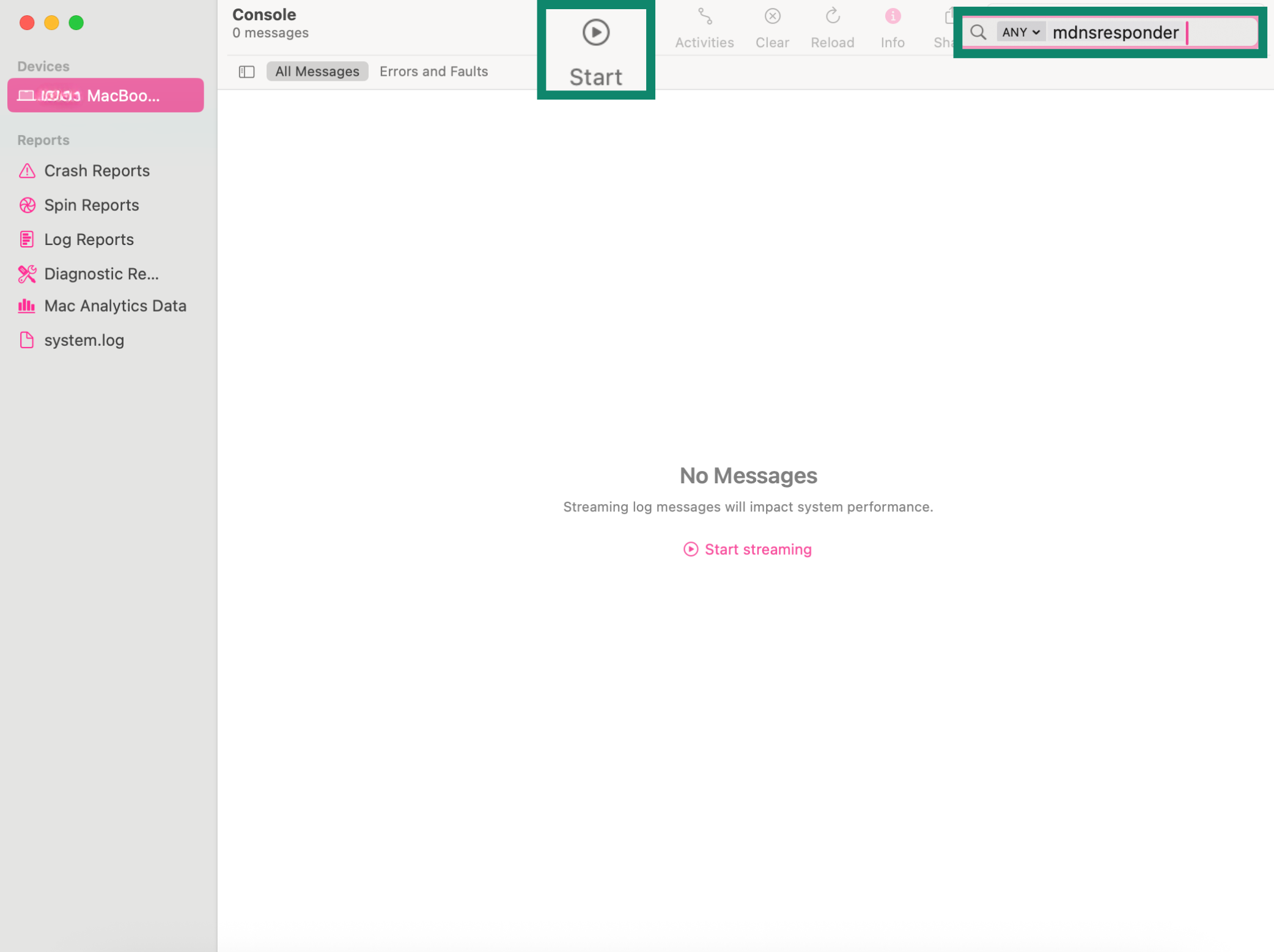
1. Go to Applications → Utilities → Console.
2. Select your device in the sidebar.
In the search field, type:
any:mdnsresponder
and click the Start (play) button.
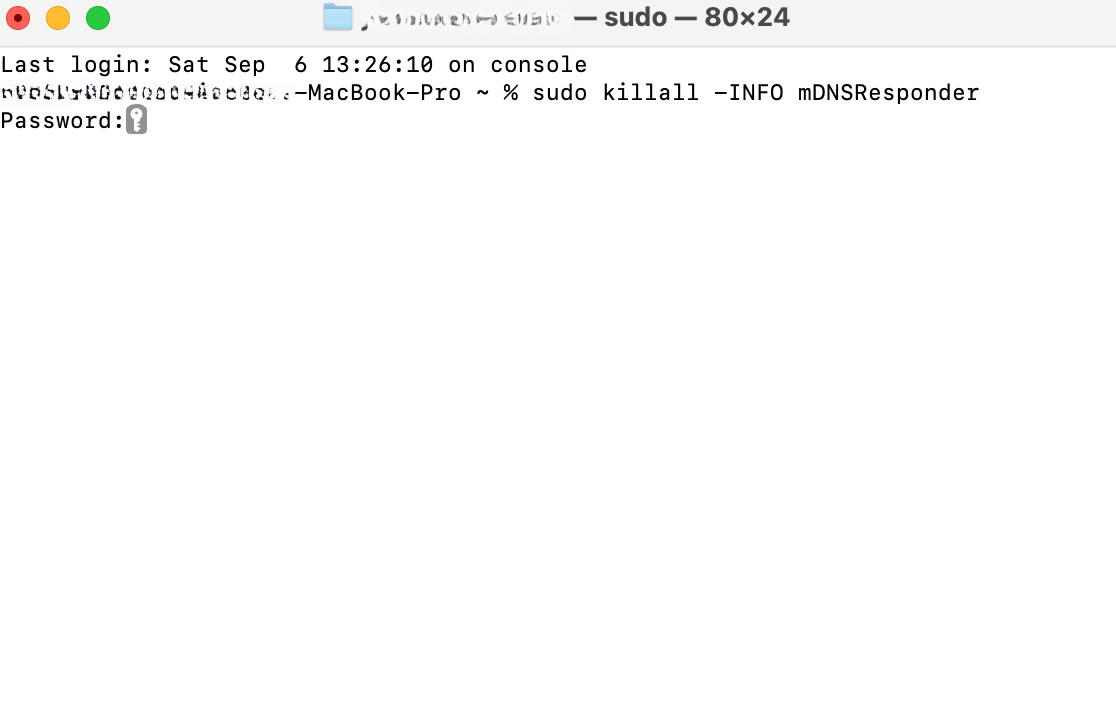
3. Open Terminal (also in Utilities).
Run:
sudo killall -INFO mDNSResponder
and enter your admin password if prompted.
4. Go back to Console: you’ll now see DNS query logs associated with sites you visited (including in private windows).
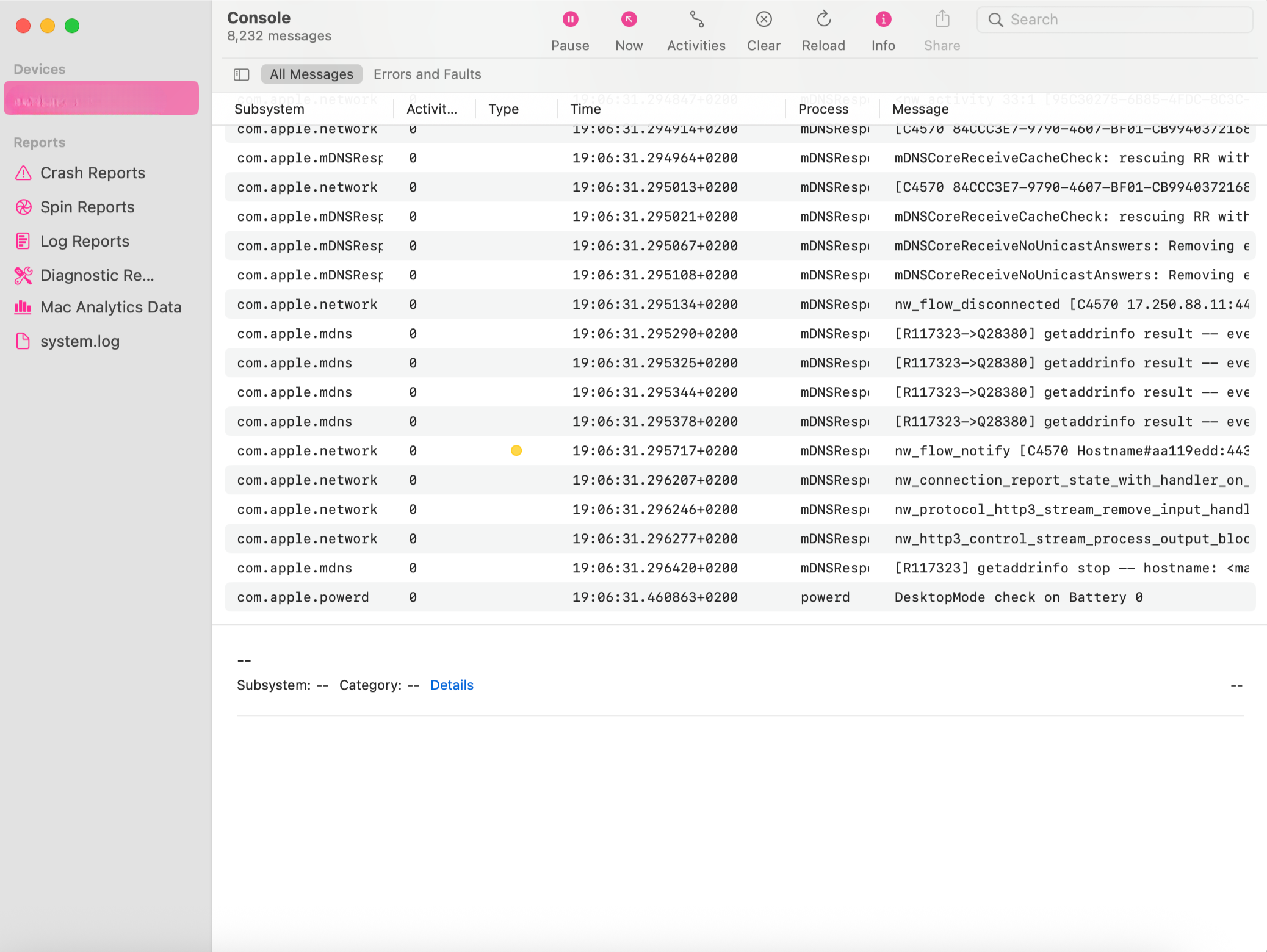
These are still just DNS queries—you won’t get full click‑by‑click history, but you’ll see which domains were hit and when.
Android: Using Apps or Chrome Internals
Out of the box, Android doesn’t provide a native “show my incognito history” toggle. But there are a few angles:
Option A: Monitoring / parental‑control apps
Apps like KidsGuard, FamiSafe, AirDroid Parental Control, Hoverwatch, etc., can log visits across standard and incognito sessions.
- Pros: detailed reports, timestamps, sometimes keystrokes.
- Cons: huge privacy risk—they see way more than just websites.
Option B: DNS / Chrome net‑internals
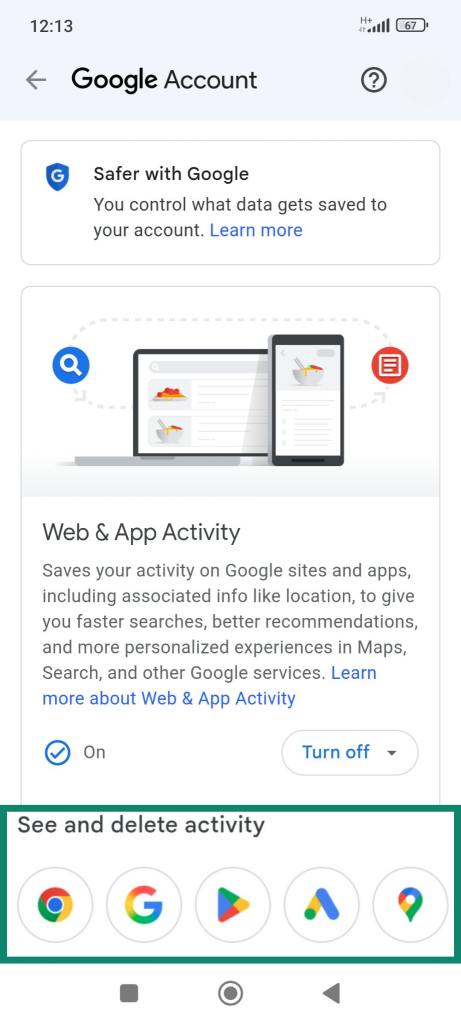
You can also check Google Web & App Activity, which records searches and sites if the feature is enabled on the account. These logs are related to a specific Google account, not the device itself, but they are a useful workaround for finding searches and websites visited on a smartphone that uses that particular account.
1. Open Google My Activity in Chrome or another browser with your Google account. Tap Web & App Activity. 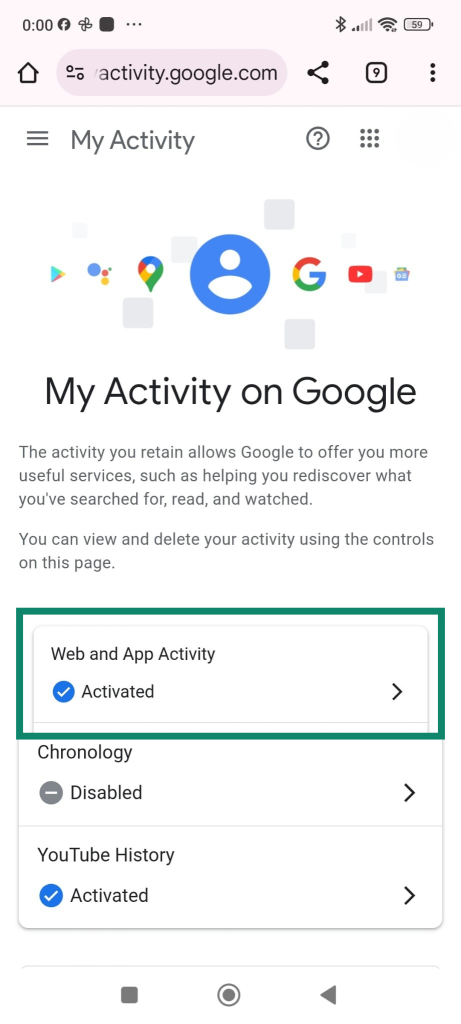
2. To see browsing and search activity, including visits made in incognito if logged in at the time, tap on the Chrome icon under See and delete activity (you can also view logs from other Google apps).
To stop this data from being saved:
1. On the same page, tap Choose an automatic deletion option under Secondary settings.
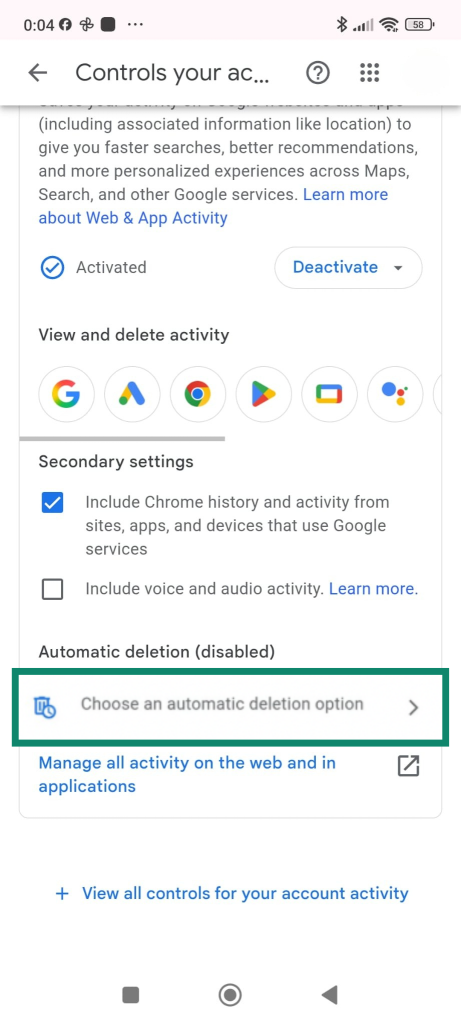
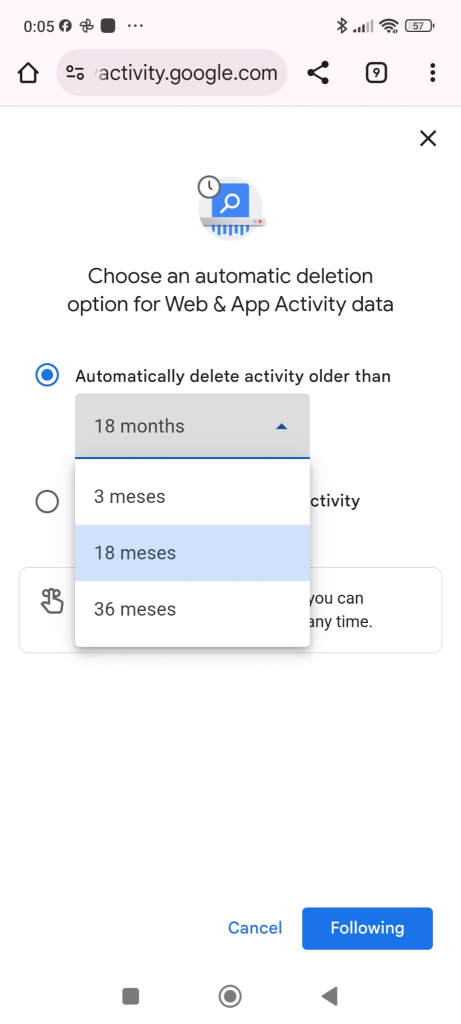
2. Choose for how many months you want to pause it.
iPhone: Apps, Activity Logs, and Screen Time
Like Android, iOS doesn’t show incognito history inside the browser, but:
Parental‑control apps can log Safari/Chrome traffic, including private tabs.
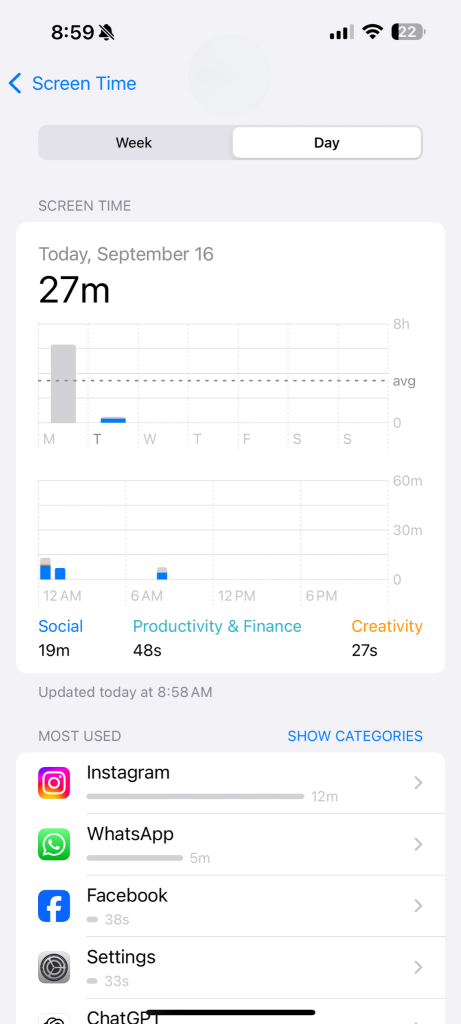
Screen Time can show domains accessed, even if some of that came from private browsing:
1. Go to Settings → Screen Time.
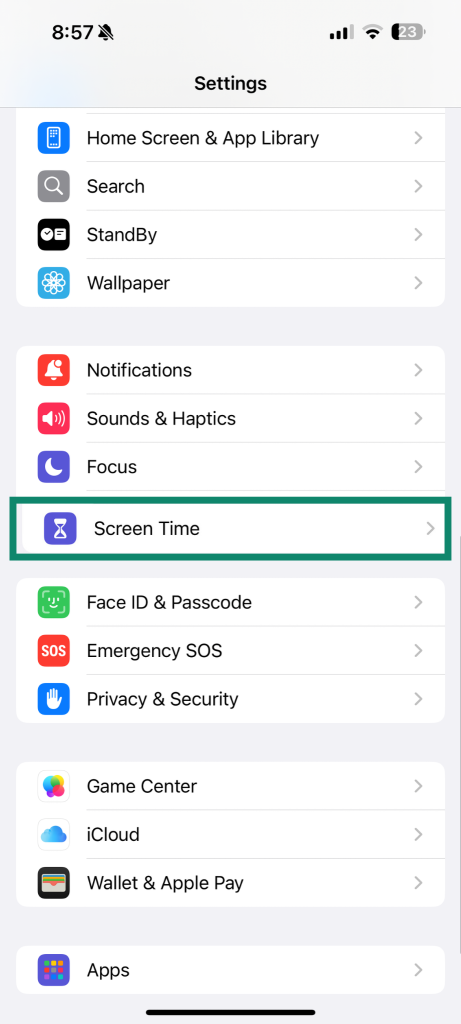
2. Tap See All App & Website Activity.
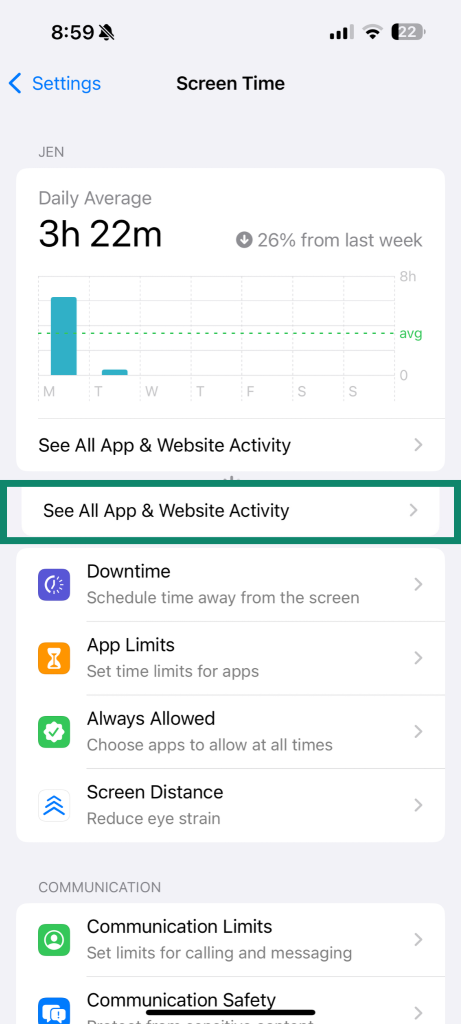
3. You may see domain names visited, regardless of private vs normal mode.
How to Delete Incognito History (DNS & Other Traces)
Now for the cleanup. Remember, there’s no “Clear incognito history” button in the browser because it’s supposed to delete itself. You’re really clearing: DNS caches, app data, downloads, and any logged activity.
Windows: Flush DNS Cache
To wipe DNS records that might reveal sites you visited in incognito: 1. Open Command Prompt as administrator:
1. Start → type cmd → right‑click Command Prompt → Run as administrator.
2. Run:
ipconfig /flushdns
3. Hit Enter. You should see a message that the DNS Resolver Cache was successfully flushed. This removes DNS traces of domains visited—including incognito sessions.
If you want to be extra obsessive, you can also:
- Clear the browser cache and cookies for good measure.
- Manually delete any files you downloaded or bookmarks you created while in incognito.
macOS: Clear DNS Cache
On macOS, you flush DNS via Terminal:
1. Go to Applications → Utilities → Terminal.
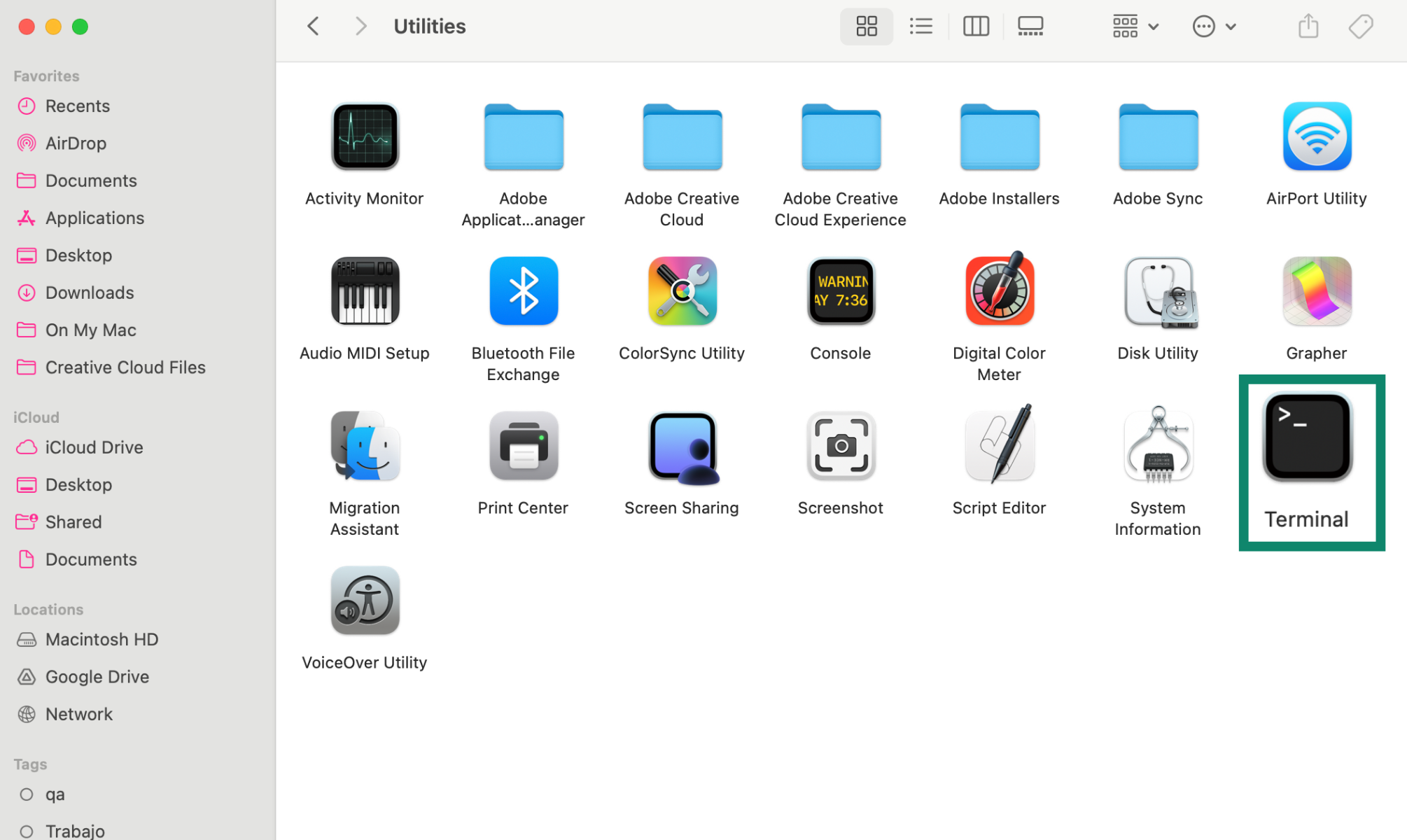
2. Run this command (works for most modern macOS versions):
sudo killall -HUP mDNSResponder
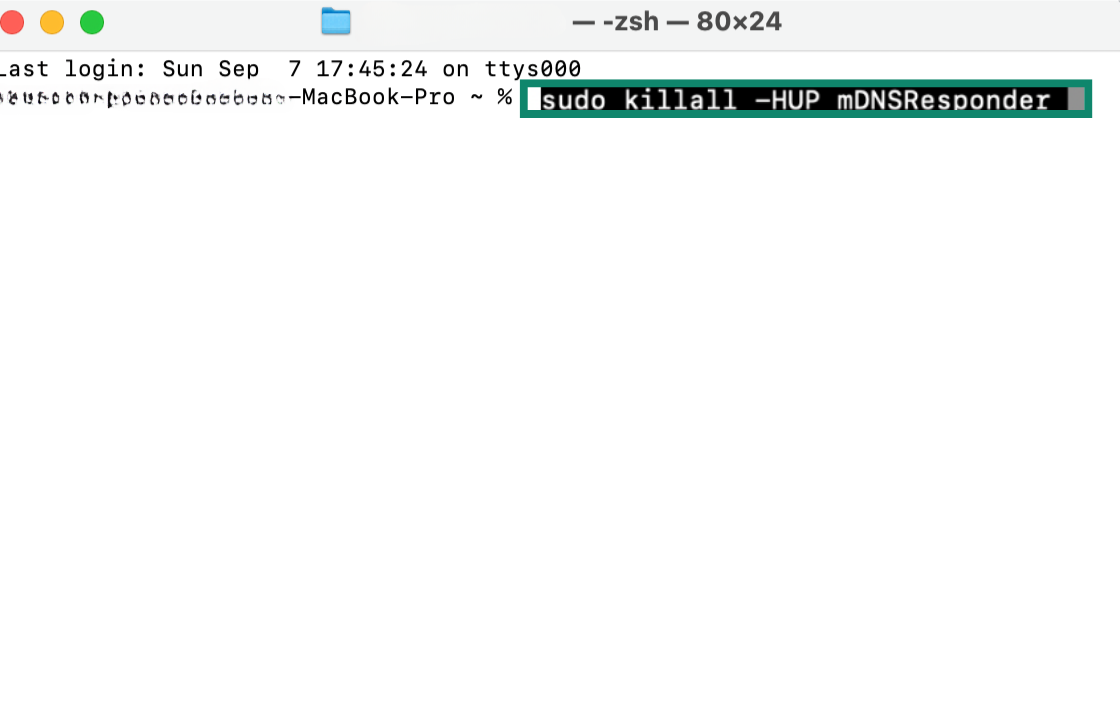
Then press Return and enter your admin password.
If you’re on certain older OS X 10.10.x versions, you may need:
sudo discoveryutil udnsflushcaches;sudo discoveryutil mdnsflushcaches
instead.
Once that’s done, DNS cache (and with it, incognito DNS traces) is cleared.
Again, you may also want to:
- Clear Safari/Chrome browser caches.
- Remove any downloads/bookmarks you created mid‑session.
On Android
Unlike on desktop systems, Android does not give users a way to flush the system-level DNS cache. In fact, based on our testing, most major browsers on Android (including Chrome, Samsung Internet, and Firefox) seem to bypass the system cache and handle DNS resolution themselves.
For example, Chrome uses a separate in-memory DNS cache in Incognito that is wiped automatically when you close the session. This means you don’t need to manually clear it.
When it comes to non-Chromium-based browsers such as Firefox, closing incognito/private mode does not guarantee DNS traces are erased. The only way to clear them is to wait for the DNS cache to expire on its own or clear the app’s data in Android settings.
On iPhone
iPhones don’t offer a built-in option to clear incognito records through the browser. The most reliable way to flush the DNS cache is by restarting the device. Simply power it off using the side button, wait a few seconds, and turn it back on. This refresh clears the DNS cache and removes any temporary traces left from incognito sessions.
This process clears the DNS cache, removing traces of incognito activity stored there.
How to Actually Hide Your Browsing (Beyond Incognito)
If your goal is “my roommate shouldn’t see my search history,” incognito alone is fine. But if you’re trying to keep ISPs, employers, advertisers, or random Wi‑Fi owners from tracking you, you need more than a private window.
Use a VPN to Encrypt Traffic and Hide Your IP
A VPN (Virtual Private Network): – Encrypts all your traffic so your ISP or Wi‑Fi owner sees only encrypted gibberish, not which sites you’re visiting.
- Masks your real IP address, giving sites the VPN server’s IP instead of yours.
- Makes it much harder for data brokers and trackers to build profiles across different sites.
Used together, incognito + VPN means:
- The browser doesn’t store local history.
- The network/ISP can’t easily see what you’re doing.
Use More Private Browsers & Search
Incognito mode on a mainstream browser is still part of a big tracking ecosystem. You can crank things up a notch by: – Using privacy‑focused browsers (e.g., ones that block trackers, fingerprinting, and force HTTPS by default).
- Switching to private search engines that don’t build user profiles.
- Watching your extensions—they can see basically everything your browser sees. Only keep what you really trust.
Lock Down Tracking: Cookies, Location, and Accounts
Even with incognito, your activity can be stitched together via other signals. To cut that down: – Reduce or block third‑party cookies and clear cookies regularly.
- Turn off unnecessary location sharing in your browser and apps.
- Don’t stay logged into big accounts (Google, Facebook) while you’re doing sensitive browsing if you don’t want it tied to your identity.
- Consider periodic anti‑malware scans to catch keyloggers and spyware that could bypass all of the above.
FAQ: Common Questions About Incognito History
Can Wi‑Fi owners or my ISP see my incognito history?
Yes. They can usually see the domains you visit, regardless of incognito. Incognito only hides history from other users of your device. ### Does incognito history appear on my Wi‑Fi or ISP bill?
No, your bill generally won’t list individual sites. But your ISP may keep internal logs that record which sites your IP accessed.
Can I permanently delete my incognito history?
You can’t retroactively erase what ISPs or sites have already logged, but you can:
- Flush DNS caches on your devices (Windows, macOS, Android Chrome, iOS).
- Clear browser caches and app data.
- Remove downloads/bookmarks created during incognito.
Going forward, combine incognito + VPN + privacy tools to minimize what gets logged in the first place.
Is incognito more private than normal browsing?
Locally, yes: it doesn’t store history, cookies, or form data after you close the session. On the network and website side, it’s basically the same—you’re still visible unless you add tools like a VPN.
Does incognito mode log visited sites at all?
The browser itself doesn’t record the sites you visit in its normal history while you’re in incognito mode—but that doesn’t mean nothing is logged anywhere.
Outside the browser, several other layers can still keep track of where you’ve been:
- DNS cache on your device: Your operating system often stores recent domain lookups (the DNS cache), and that list can include sites you visited in incognito.
- Routers and ISPs: Your home router, office network, or internet service provider can still log the domains you access, because incognito doesn’t hide your IP address or encrypt your traffic.
- Browser extensions: If you install an extension and explicitly allow it to run in incognito (for example, logging extensions like “Off The Record History”), it can record your private‑mode activity and store it for later. – Monitoring / parental‑control apps: On desktop and mobile, monitoring or parental‑control tools can log visited sites, searches, and even keystrokes across normal and incognito sessions. So, incognito mode stops your browser’s built‑in history from filling up, but it doesn’t stop system‑level, network‑level, or third‑party tools from logging the websites you visit.